
Detail view fields
What this does
Chooses which fields the flight detail view shows, and the order its blocks and fields appear in.
Before you start
- A profile is open. The editor is reached through Profile Settings.
- The detail view only shows fields that have a value on the flight you’re looking at. Turning a field on here lets it appear; it doesn’t make it appear. That’s by far the most common reason this editor seems to do nothing.
- The selection and both orders follow your logbook to your other devices (→ J4).
- Nothing here changes a logged value.
Steps
- On the dashboard, tap your own profile card at the top to open Profile Settings, scroll to LAYOUTS and tap Detail View — Pick fields and reorder the blocks in the flight detail view.
- Find the eight blocks listed in the editor. Each shows how many of its fields
are shown out of how many exist. The instruction above them reads: Drag a
block to reorder it. Tap a block to expand, then drag a field to reorder it
or toggle it on/off.
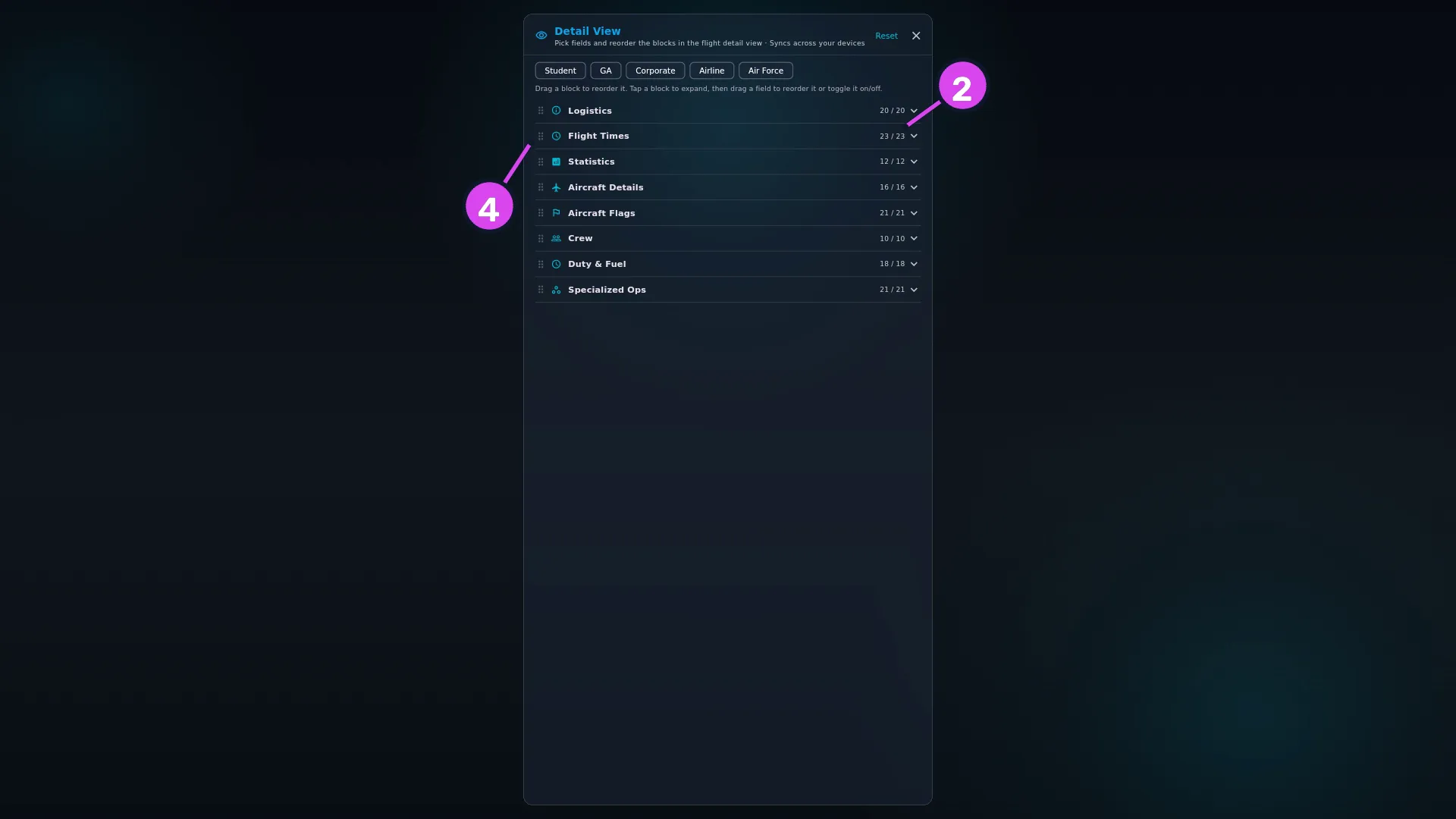
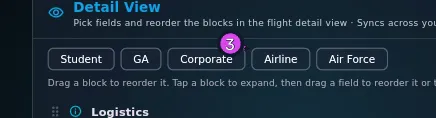
4 a drag handle — reorders the block2 a count of fields shown out of fields available - For a quick start, tap one of the five preset chips — Student, GA,
Corporate, Airline or Air Force.
- Drag a block by its handle to move it up or down the detail view.
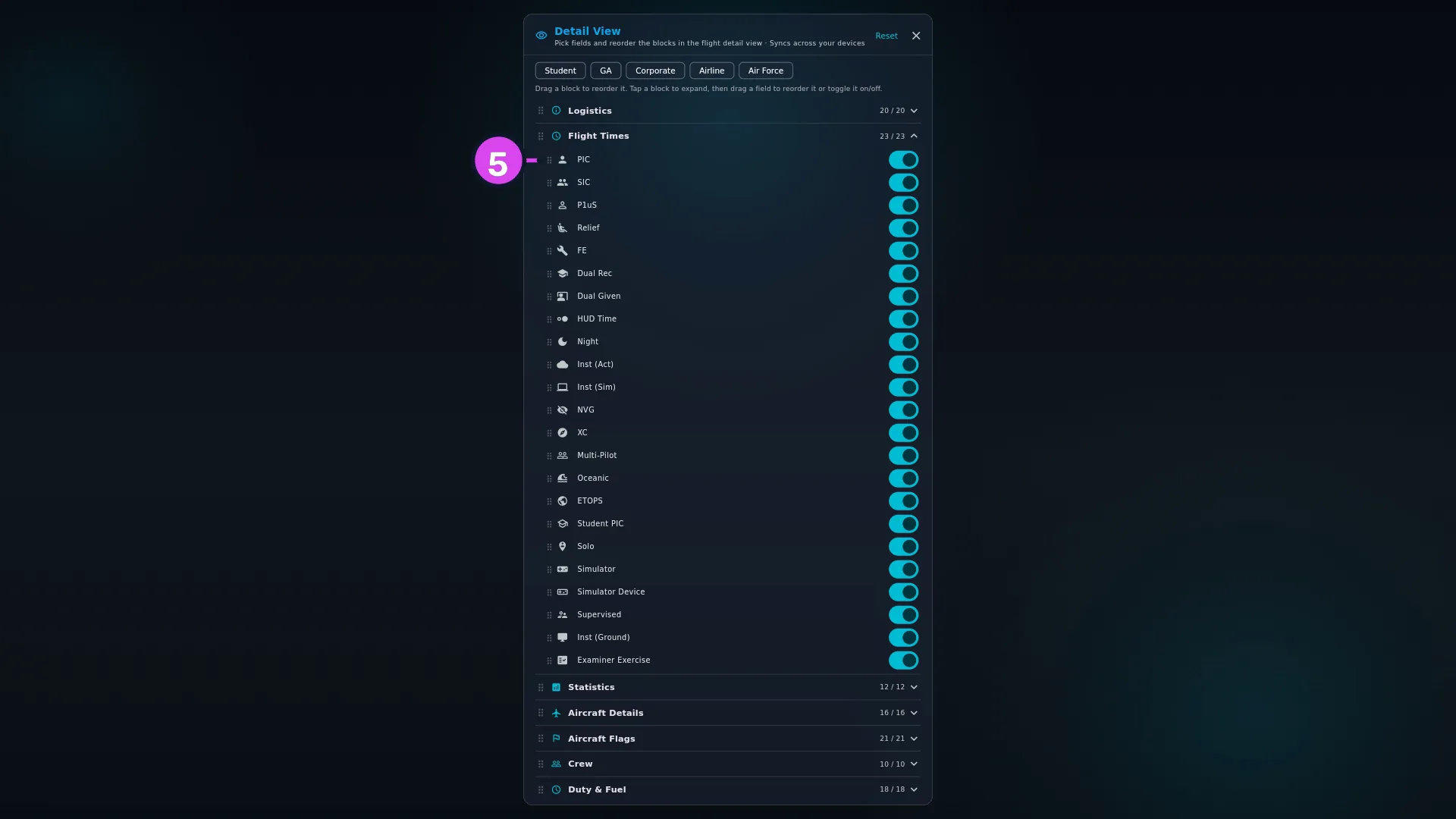
- Tap a block to expand it, then turn individual fields on or off, or drag them
into the order you want within the block.
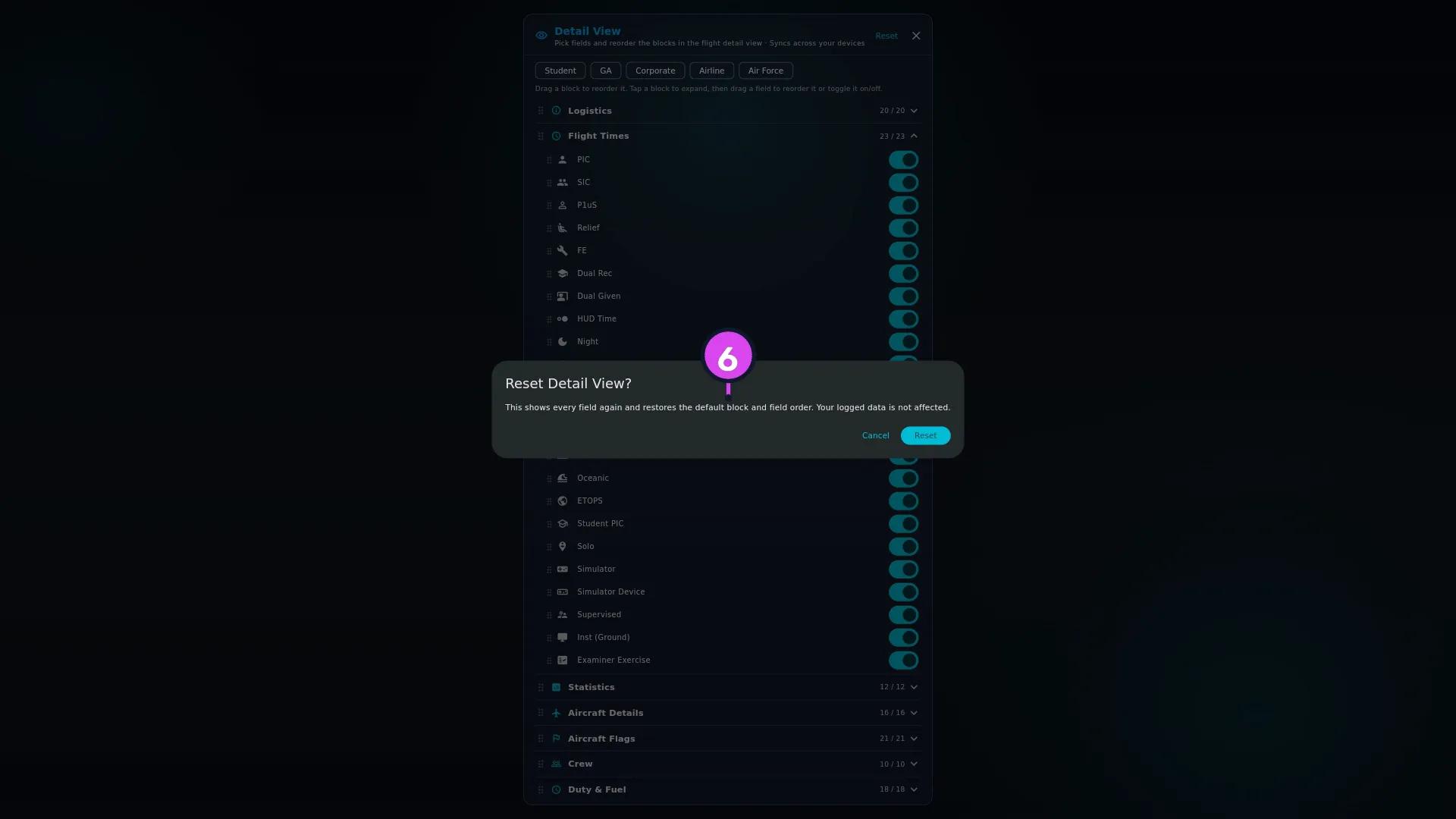
- To undo everything, tap Reset in the header and confirm. The dialog is
headed Reset Detail View? — This shows every field again and restores the
default block and field order. Your logged data is not affected.
- Tap the ✕ in the header to close the editor.
How to tell it worked
Open a flight that has plenty filled in. The blocks and the fields inside them appear in the order you set, and the fields you turned off have gone. In the editor, each block’s count updates as you go, so a block you’ve trimmed reads something like 6 / 21.
If something goes wrong
| What you see | Why | What to do |
|---|---|---|
| You turned a field on and it still doesn’t appear | That flight has no value in it. A field with nothing in it isn’t drawn, and a block with no populated field isn’t drawn at all | Fill the field in when you log (→ J5), or go and check a flight that has it |
| Turning off Route hides the “via …” line but the departure and arrival codes above it stay | Those codes come straight from the flight’s airports, not from this switch | Nothing to do. The rest of the switch works as you’d expect |
| A preset wiped a selection you’d built | A preset replaces the whole selection: it shows that preset’s fields and hides every other built-in one. It doesn’t add to what you had, and any custom field you’d hidden here comes back | Rebuild it, or tap Reset and start again. There’s no undo besides Reset |
| A block you reordered is missing from a flight | Nothing in it has a value on that flight | Open a fuller flight |
| Additional Fields isn’t in the editor | The footer section only appears once the logbook has custom fields | Create one (→ J7) |
The eight blocks
In their default order, with how many fields each holds. There are 141 in total, so the counts matter more than the list.
| Block | Fields |
|---|---|
| Logistics | 20 |
| Flight Times | 23 |
| Statistics | 12 |
| Aircraft Details | 16 |
| Aircraft Flags | 21, drawn as chips rather than rows |
| Crew | 10, drawn from the flight’s crew list |
| Duty & Fuel | 18 |
| Specialized Ops | 21 |
Below them sits Additional Fields, holding your custom fields. It can’t be dragged, and always stays at the bottom.
Custom fields have a second switch elsewhere
The switches under Additional Fields in this editor control the detail view. A custom field also has a switch in the Custom Fields editor, and that one controls the entry form instead. They’re two different switches over two different screens (→ J7).
Why a field you never fill in never shows
This editor decides what’s allowed on screen; the flight decides what’s there. So if a field is missing from every flight you open, the fix is in the entry form — put it back on the wizard and start recording it (→ J5) — or in the flights themselves. Turning it on here is needed, but it isn’t enough.