
Where every row ends up
In one line
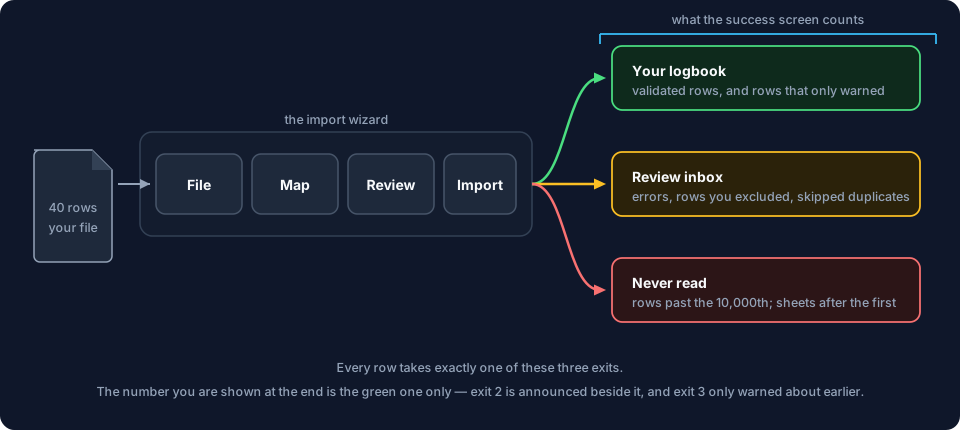
Every row in the file you import ends up in one of three places — your logbook, the Review inbox, or unread.
The screen at the end of an import accounts for all three.
Why it works this way
An import always goes through the same four steps, whatever the source: File, Map, Review, Import. A row the app can read and check goes into the logbook. A row it can’t — a missing date, an unreadable time, a flight that looks like one you already have — is held for you to deal with, rather than forced in half-read or thrown away.
The completion screen tells you where everything went: how many rows landed, whether any are waiting in the Review inbox, and whether the file was bigger than the app will read in one pass.
What this means for you
- The four steps never change. A CSV or a spreadsheet starts at File. An AI Scan skips the file step and starts at Map, and is otherwise the same wizard. Learn it once and it works for everything in this area.
- Exit 1 — your logbook. Rows that passed cleanly, plus rows that only raised a warning. Warning rows are imported, and the completion screen’s count includes them, so it matches the flights you actually gained.
- Exit 2 — the Review inbox. Rows with an error (even one the app couldn’t read at all is kept and held, not dropped), rows you excluded by hand, and duplicates you chose to skip. They wait there until you deal with them (→ B5). When there are any, the completion screen says so and offers Open Review Inbox on the spot.
- Exit 3 — never read. Rows past the ten-thousandth, every sheet after the first in an Excel workbook, and every table but the largest in an HTML file. You’re warned about the row cap three times — when the file loads, above the Import button, and on the completion screen — and a banner on the Map step names each skipped sheet or table with its row count. The warnings only report what was left out. None of them go back and read it, so check the size and shape of your file before you start (→ B2).
- Nothing is overwritten. An import only ever adds. A row that matches a flight you already have becomes a decision for you, never a silent replacement.
- The original row is kept. Beside whatever a row created, the app keeps an exact copy of the source row — every column, including the ones nothing was mapped to. You can see it later from the flight’s Source button (→ B6).
- An import can be undone as a whole. Undo has limits, and they’re worth reading before you need them (→ B6).
The common mistake
Closing the completion screen without reading past the headline.
Import Complete! and Successfully imported N flights. is the first line, and it’s the true count — clean rows and warning rows together. What a reader in a hurry misses is underneath: an N row(s) need review callout with its own Open Review Inbox button, which only appears when something is waiting, and a row-cap warning if the file was too big to read in one pass. Tap Done the moment the first line looks right and you skip both.
You’ll see those signals elsewhere too — a badge on the Review button on the wizard’s first screen, and a red badge on the Import / Export / Backup card on the dashboard — so a waiting row never stays invisible for long. But the completion screen already has your attention, and it’s the easiest place to catch them.
Where to go next
- Doing the import: Import a CSV or Excel logbook
- Dealing with what was held: The Review inbox
- Reversing the whole thing: Import history and undo
- Getting flights off paper: AI Scan: digitise paper pages