
Sync troubleshooting
What this does
Turns “sync doesn’t work” into one of four named failures, each with its own fix.
It also tells you which of your two devices the fix happens on, because more often than not it’s the other one.
Before you start
- Both devices in front of you, awake, with the profile open on each. Most of what follows can’t be diagnosed from one device.
- Know which device you started the sync from. Every error message is written from that device’s point of view and names the other one.
- Read I1 if you haven’t: the four network conditions and the three things that have to match are the whole vocabulary of this guide.
- Nothing here requires deleting a profile, and no problem on this page is fixed by deleting one.
Steps
Work down these four in order. Each one puts you in a family of failures, and the families share no fixes at all.
- Open Cloud-Less Sync and look for the other device. The screen searches
for about six seconds, then settles on Nothing found yet with a Retry
button. If that’s what you see, you’re in family 1. The search keeps
running after the words change, so a device you switch on now appears on its
own — but if it’s been sitting there a while, Retry won’t fix it.
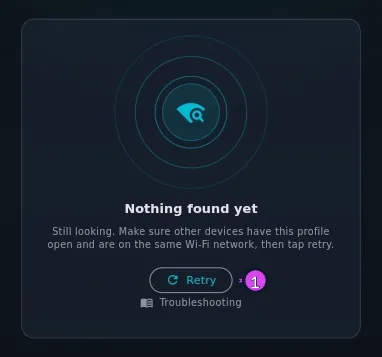
1 Retry — rarely the actual fix - It’s listed — tap it. If it fails after about ten seconds with Couldn’t reach <name> at <host:port>…, you’re in family 2.
- It connects — check whether it’s refused. A refusal arrives quickly and gives a reason: accounts, trusted lists, certificates, the logbook, its members. You’re in family 3, and the wording tells you which device to act on.
- It syncs — check for what’s missing. A green Sync Successful! with a photo, a flight or a field missing is family 4, and it’s usually not a sync fault at all.
How to tell it worked
Sync once from each device and both report Sync Successful! Then look for the specific thing you were missing, not for a clean screen.
Before you decide anything was lost, open Review. A flight that came across and was held there as a suspected duplicate is by far the most common “missing flight” — it’s waiting in the queue, not gone.
If something goes wrong
| What you see | Why | What to do |
|---|---|---|
| A Connection Request PIN dialog after a sync has already finished, several times over, that nobody can answer | The other device is reopening a connection it no longer needs. Nothing is wrong with the logbook | Tap Cancel / Reject on each. If it happens on every sync, note your version and report it (→ A11) |
| Two entries for what you’re sure is one device, on Linux | A double entry today is two real devices | Check the short ID of each under Devices (→ I7) |
| Discovery error: … / Discovery unavailable | The part of the app that finds other devices couldn’t start on this one | Restart the app. On the Linux snap, see family 1 below |
| Sync cancelled. | The PIN dialog was answered with Cancel, or closed without six digits. Nothing else produces this message | Sync again and type the PIN (→ I4) |
| A sync that stops at the same point every attempt | It’s sending the entire logbook | See the last gotcha below, A first sync after a clone or a restore is not a normal sync |
Reference: family 1 — the other device is not in the list
The screen says Nothing found yet for every cause below except the first, and it can’t tell the rest apart, so you’ll have to. Check in this order.
| Cause | How to confirm it | Fix |
|---|---|---|
| The two devices hold different profiles | When the other device is on the same network, the screen says Found | Read A2. If you created a profile on the second device instead of sending the real one across, combine the two (→ H8), then send the real one across |
| Not actually on the same network | Check the Wi-Fi name on both, not the signal icon. A phone on the guest network is the classic | Put both on the same network |
| The network keeps its devices apart | Common on guest networks, hotel Wi-Fi and some mesh access points. Neither device can see the other at all | Use a network you control, or a phone hotspot with both devices on it |
| The other app is closed or in the background | Sync runs only while a profile is open, and stops when the app closes | Open the app on the other device, open the profile, and leave it in the foreground |
| A VPN is running | On either device | Turn it off on both for the sync |
| Nearby devices permission refused — Android 13 and later | The app warns Nearby Devices permission is required to find other devices. | Grant it in the Android app settings and reopen the sync screen |
| The Linux snap is missing its discovery permissions | The empty screen shows a hint card with the exact command | Run the sudo snap connect command it prints, then reopen the app |
Reference: family 2 — it is listed but will not connect
The attempt gives up after ten seconds: “Couldn’t reach <name> at <host:port>. Make sure both devices are on the same Wi-Fi and that no VPN is active on either device — a VPN can make the other device’s address unreachable. If it keeps failing, try starting the sync from <name> instead.”
Follow the message in its own order: VPN off on both, same Wi-Fi confirmed, then take its last suggestion seriously.
If it times out one way and works the other, that’s the network, not the app. Two devices on one Wi-Fi can sometimes reach each other in one direction only. An access point that keeps its devices apart, or a router whose two radios don’t talk to each other, does exactly that. A timeout is never the app refusing: it’s ten seconds with no answer at all. Start the sync from the side that works. One sync moves data in both directions anyway, so you lose nothing by always doing it that way.
A one-way refusal can be the app, and it looks different: it arrives quickly and gives a reason, which puts it in family 3. The device that starts a sync will only connect to a device it already knows, while the device receiving one lets an unknown device on the same account through as far as the PIN.
Reference: family 3 — it connects and is refused
One row per message. The column that matters is the middle one.
| What you see | Which device to act on | What to do |
|---|---|---|
| The two devices have different logbooks open, so they will not sync. Open the same logbook on both and try again. If they hold two separate logbooks you meant to be one, Combine brings them together. | Either | Open the same logbook on both. If they’re two logbooks that should be one, combine them (→ H8) |
| This device doesn’t have the other one in this logbook yet. Start the sync from the other device instead: this one will show a PIN to enter there. | The other one | Start the sync there, and type the PIN this device shows, with Trust this device ticked (→ I4) |
| The other device was removed from this logbook, so this device won’t sync with it. To bring it back, start the sync from the other device: this one will show a PIN to enter there. | The other one | Only if you want it back: start the sync there and type the PIN this device shows. If you removed it on purpose, nothing to do (→ I7) |
| The other device needs updating before this one will sync with it. Update Aviator Archive there. Until then, start the sync from the other device instead. | The other one | Update the app on the other device. Until you can, start the sync from that device instead, which works as it is |
| <name> is not signed in to its Aviator Archive account right now, so it cannot check this device. Open the app on <name>, sign in if it asks, then try again. | The other one | Open the app there, sign in if it asks, and try again |
| <name> is not in this device’s trusted list. Make sure you are signed in to the same account on both devices, then try again. | Both | Check both are signed in to the same Aviator Archive account, then retry. If they are, pair them with a PIN (→ I4) |
| <name> is not in this device’s trusted list, and this session has expired — so the list cannot be refreshed. Sign in again on this device to restore sync. | This one | Sign in again here. Your logbook and Pro features kept working throughout; only sync needed the session |
| <name> is signed in to a different Aviator Archive account. Both devices must use the same account to sync. | The other one | Sign it out, then into your account |
| This device had been removed from your account, so <name> refused it. It has been re-enrolled — try the sync again. | This one, already done for you | Tap the device again |
| This device has been removed from your account, so <name> refused it. Sign in again on this device to restore it. | This one | Sign in again. If you removed it yourself under Devices, this is that decision taking effect, and it needs pairing again too (→ I7) |
| <name> still has an older security key for this device. Open Settings → Devices on <name> to refresh its list, then try again. | The other one | On that device, open Profile Settings → Account & Data → Devices and let the list refresh (→ I7) |
| <name> could not read its own list of trusted devices. Restart <name> and try again. | The other one | Restart the app there |
| <name> could not verify this device’s security certificate. Sign out and back in on this device to enroll it again. | This one | Sign out and in here |
| Refused <name>: …. This device will only sync with devices enrolled to the same Aviator Archive account. | Both | One account on both devices |
| <name> refused the connection. Make sure both devices are signed in to the same Aviator Archive account, then try again. | Both | As above |
| Secure connection to <name> was refused. Both devices must be signed in to the same account. If you recently signed in again, give it a moment and retry. | Both | Wait a minute and retry before changing anything |
| This device was removed from your account, so it won’t sync. … at the top of the sync screen, with SIGN IN | This one | It was removed under Devices on another device. Tap SIGN IN, then start a sync from this device and pair it with a PIN (→ I7) |
| A device was removed from your account since you signed in here, so this one can’t set up sync until you sign in again. at the top of the sync screen, with SIGN IN | This one | Tap SIGN IN. After a device is removed, an older sign-in can no longer set up sync on a device, so a removed device’s sign-in can’t be used to add new ones |
| A PIN, once, with a device you paired long ago, after updating the app | Both | Type it, with Trust this device ticked. Pairings made before devices carried an ID can’t be checked against the device, so they are made again once (→ I4) |
| This device is registered to another account. … at the top of the sync screen | This one | On a current version each account signed in on a device gets its own identity there, so two pilots can each sync from one device (→ I1). If you still see this, note your version and report it (→ A11) |
| Sign in on this device to sync. While it is signed out it can neither start a sync nor accept one. | This one | Sign in here. Starting from the other device does not get round it — signing out removes what this device uses to prove it’s yours, and without it the device is refused in both directions |
Reference: family 4 — it syncs, and something is missing
| What’s missing | Why | What to do |
|---|---|---|
| A photo, a document scan, an avatar | Media travels after the records, and the app doesn’t guarantee every file on the first try. A missing file leaves a placeholder | Sync again. Each sync tries again for whatever didn’t arrive (→ I1) |
| A flight you’re sure you logged on the other device | It may be held in Review on this device as a suspected duplicate, which looks exactly like a flight that never arrived | Open Review and look there first |
| A flight you dismissed from Review, now in neither logbook’s list | Dismissing a held duplicate throws away this device’s copy, and the sending device has already marked that flight as sent — so a later sync doesn’t offer it again. The flight is still in the logbook that recorded it | Go to that device, find the flight, and change anything on it. That sends it again. For anything you’re unsure about, keep it rather than dismissing it — a duplicate is easy to merge later (→ D8), and a dismissal is the one step here with no way back |
| A field you cleared on one device, still filled on the other | It depends on the field. A flight’s remarks, route or flight number, and the notes on an aircraft or a training event, clear on the next sync. Any other field keeps the value already on that device | For one of those fields, sync again. For anything else, clear it on both devices (→ I1) |
| Everything, on a device that reports Sent: 0 instantly | A restored device can inherit the source device’s record of what it had already sent | → I8 |
| An endorsement an instructor added on another device | Endorsements aren’t carried between devices | Have the flight endorsed on the device you keep it on |
Reference: what to check, in order
A list you can work down without having read any of the above.
| Check | If it’s wrong | |
|---|---|---|
| 1 | Both devices hold the same profile, not two with the same name | → A2 |
| 2 | Both on the same Wi-Fi, by name | Move one |
| 3 | No VPN on either | Turn it off on both |
| 4 | Both apps open, in the foreground, with the profile open | Open them |
| 5 | Both signed in to the same Aviator Archive account | Sign in |
| 6 | Android: Nearby devices granted. Linux snap: discovery permissions connected | Grant, or run the printed command |
| 7 | The other device appears in the list | Families 1 and 2 above |
| 8 | The sync reaches Sync Successful! | Family 3 above |
| 9 | Review is empty of what you’re missing | Family 4 above |
Gotchas
The list shows names, and names repeat. Two devices with the same name — or with none, in which case they show up as Android device, Linux device and so on — are hard to tell apart in the list. The short ID under Devices is the reliable way to tell them apart (→ I7). It’s also why Reset Sync Status looks a device up by ID before name (→ I7).
Sync Settings shows this device’s full ID. The gear icon on Cloud-Less Sync, tooltip Sync settings, opens a dialog with two facts: Device ID, which you can select and copy, and Listening, this device’s address and port — or Service not running if sync hasn’t started. Its first eight characters are the ID Devices shows (→ I7), so it’s the way to be sure which entry is which. There’s nothing to change in it; CLOSE puts it away.
An expired session on one device produces an error message on the other. So if a refusal tells you to sign in again “on this device” and you’re certain you are signed in, read the message again for whose name it carries — and check the other device’s session too. Sessions expire without telling you.
A first sync after a clone or a restore isn’t a normal sync. After you’ve copied a profile to a new device (the app calls it a clone) or restored a backup, the first sync can send the whole logbook. Treat a timeout there as a size problem, not a fault.
Worked example
“It worked yesterday. Today the laptop can’t find the phone.”
- Is the phone in the laptop’s list? No. Family 1.
- Same Wi-Fi? Both say yes — until you read the network names. The phone reconnected to the guest network overnight. Move it to the main one, tap Retry, and there it is.
- Tap it. Ten seconds, then Couldn’t reach…. Family 2. The laptop still has a VPN up from this morning’s work. Turn it off and tap the phone again.
- It runs.
Sent: 0 / Received: 214, Sync Successful! Two real faults, two different families, and neither one a problem with sync. - Then the second half. A flight logged on the laptop this morning still isn’t on the phone. The instinct is to sync again, and it’s worth one try — but a single sync already moved data both ways, so the flight did come across. Open Review on the phone: there it is, held as a suspected duplicate of the leg already entered from the phone’s own roster that morning. Accept or dismiss it and the count comes right.
The habit that shortens every one of these evenings: name the family before you change anything, and open Review before you decide anything is lost.