Puts the logbook you already have onto a second device: one screen shows a code,
the other scans it.
The new device ends up holding the same logbook, under the same identity, and
it’s already a member of the logbook — paired, with nothing more to do.
Before you start
Don’t create a new profile on the new device. A profile created there is a
different logbook, and the two will never find each other
(→ A2). This guide is how
you avoid that.
Both devices on the same Wi-Fi, and the logbook open on the device that has it.
The new device needs a camera and an internet connection — it signs in to
your Aviator Archive account partway through. Desktop Linux and Windows have no
camera support: use Paste code in step 3, or move the profile over the air
instead (→ I3).
Five quiet minutes. While the new device is receiving, its close button is
disabled, and leaving the screen cancels the transfer.
Steps
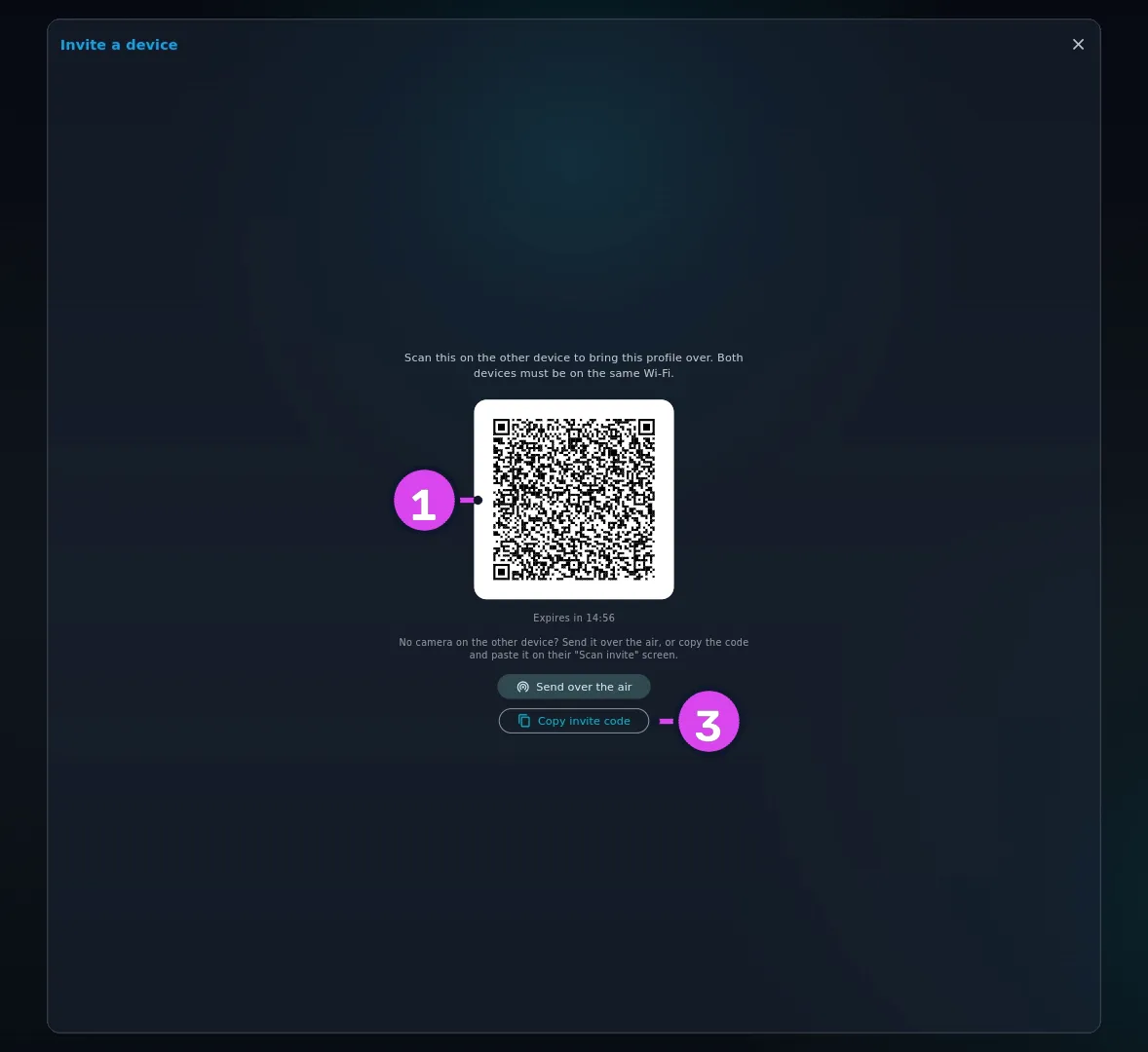
On the device that already has your logbook: open Cloud-Less Sync and
tap the QR icon in the app bar, tooltip Invite a device. (Profile Settings
→ Data Sync → Invite a device opens the same panel.) A QR code appears,
with Expires in mm:ss counting down beneath it. An invite is good for 15
minutes and can be used once.
Expand1 the QR the other device scans3 Copy invite code
If time runs out before you get to the other device, the code fades and the
panel reads This invite has expired. with Generate a new invite.
On the new device: open the scanner. If this device has no logbook yet,
tap the profile selector’s + button → Scan invite. If it already has a
logbook open, tap the scanner icon on Cloud-Less Sync.
On the new device: point the camera at the QR code on the other screen, as
the prompt says: Point the camera at the invite QR on the other device.No camera? Tap Paste code instead under the live camera — on a device
with no camera the button reads Paste code. Then, on the device that has
your logbook, tap Copy invite code, send that text to the new device any
way you like, paste it into Paste invite code, and tap Continue. Same
code, same result.
On the new device: a screen reads Join “<name>”?, with the other
device’s address beneath it and a note that this brings that device’s profile
over and keeps it in sync. Tap Bring it over with Google or Bring it
over with Apple, whichever account the other device is signed in with.
There’s nothing to compare here — no PIN, no emoji (see below).
On the new device: sign in to that account when it asks,
then wait. Four stages go by, and two of them can look stuck. On Linux and
Windows the app says Continue in your browser…, and the browser window may
open behind the app. Then come Enrolling this device…, Connecting…,
and Receiving profile… N%.
On the new device: when the screen reads Profile received / It’s now
in your profile list. Open it to start using it., tap Back to profiles and
open the logbook.
How to tell it worked
The new device’s profile selector lists the logbook, and opening it shows your
flights. Open Cloud-Less Sync on either device and the other one is in the
list. Tap it, and the sync runs without asking for a PIN, because this pairing
already made the new device a member (→ I5). Your other devices accept it too,
from their next sync with a device that already knows about it (→ I1).
If something goes wrong
What you see
Why
What to do
The invite was rejected (expired or already used). Generate a new invite on the other device.
15 minutes passed, or this invite has already brought a profile somewhere
On the sending device, tap Generate a new invite and scan the new one
This invite looks expired. Ask for a fresh one if pairing fails.
The code’s own timestamp is old. It’s a warning, not a refusal
Carry on. If it then fails, generate a fresh invite
That doesn’t look like a valid invite code.
The pasted text isn’t an invite — usually only part of it got copied
Copy it again with Copy invite code. It begins aviator-invite:v1:
Sign-in was cancelled. You need to sign in to receive a logbook.
The sign-in window was closed, or opened behind the app on desktop
Look behind the app window, then start again from step 4
Sign in on this device before pairing — syncing needs an enrolled device certificate.
The new device isn’t signed in
Sign in on it, then scan again
Could not enrol this device for secure sync: …
Sign-in worked, but the device wasn’t registered for sync
Check the new device’s connection and try again
This device was previously paired with a different key. Remove it under Trusted devices, then try again.
This device paired with the logbook before, and the other device no longer recognises it. There’s no screen called Trusted devices any more: it means Devices
On the device that has the logbook, open Devices and tap Remove device on this one (→ I7), then scan again
Replace existing profile?
This device already holds that logbook
See below before tapping Replace
Clone integrity check failed: snapshot checksum mismatch… or Clone stalled: no data from host for 30s
The transfer was cut short — usually the sending device went to sleep, or the network dropped
Keep both devices awake and on the same Wi-Fi, generate a new invite, and run it again. Nothing was written
Sync isn’t running yet. Open this profile and try again.
The invite was requested before the profile had finished opening
Open the profile on the sending device, then tap Invite a device again
This device has a different logbook open now. Open the logbook you invited from and generate a new invite.
The sending device switched to another logbook after it showed the invite
On the sending device, open the logbook you meant to send, tap Invite a device, and scan the new code
Why there’s nothing to compare
Step 4 is the whole confirmation. There’s no PIN and no emoji, because scanning
the other device’s screen already proves you’re holding both of them.
Replacing a profile that’s already here
If the new device already holds this logbook, it asks Replace existing
profile? and warns that receiving it again replaces the local copy, including
any changes that haven’t synced yet. It means it: anything logged on this device
and not yet synced is gone. If you’re in any doubt, cancel — Pairing cancelled —
the existing profile was kept. — sync the two devices the ordinary way first
(→ I5), and use this path only for a device that has nothing to lose.
Treat the code like a password
The QR code carries the sending device’s address on your network, its security
fingerprint and a one-time key. Anybody who photographs the screen within those
15 minutes could use it. Closing the invite panel on the sending device does
not cancel an invite it has already shown. So don’t post it, don’t keep old
screenshots of it, and if you think one got away from you, generate a new invite
— that’s the whole remedy.
This path is for getting a logbook onto a device that doesn’t have it. Two
devices that both already hold the logbook don’t use it at all — they pair
with a PIN (→ I4).