
Themes and liveries
What this does
Sets how the app looks: a livery — a colour scheme plus a wallpaper — for light mode and another for dark, and whether the app follows your device’s theme.
It also sets how see-through the app’s glass panels are.
Before you start
- A profile is open. Settings are behind your own profile card on the dashboard (→ A9).
- Nothing here costs anything. No part of the appearance settings is Pro-only.
- None of this travels to your other devices (→ J4). Your phone keeps whatever it was set to, unless a Merge restore fills in a value it never had.
Steps
- On the dashboard, tap your own profile card at the top to open Profile
Settings, and scroll to APPEARANCE.
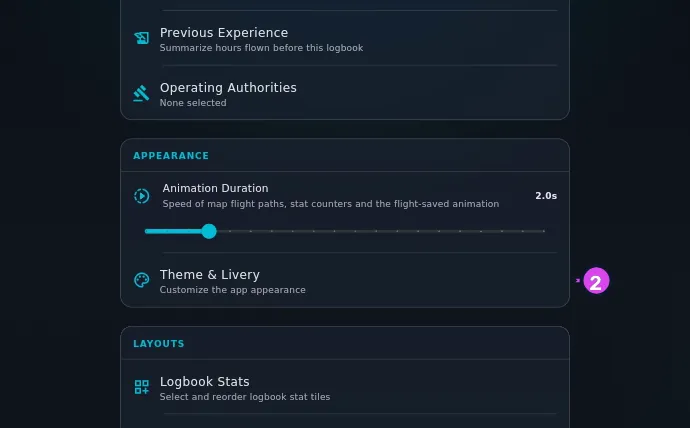
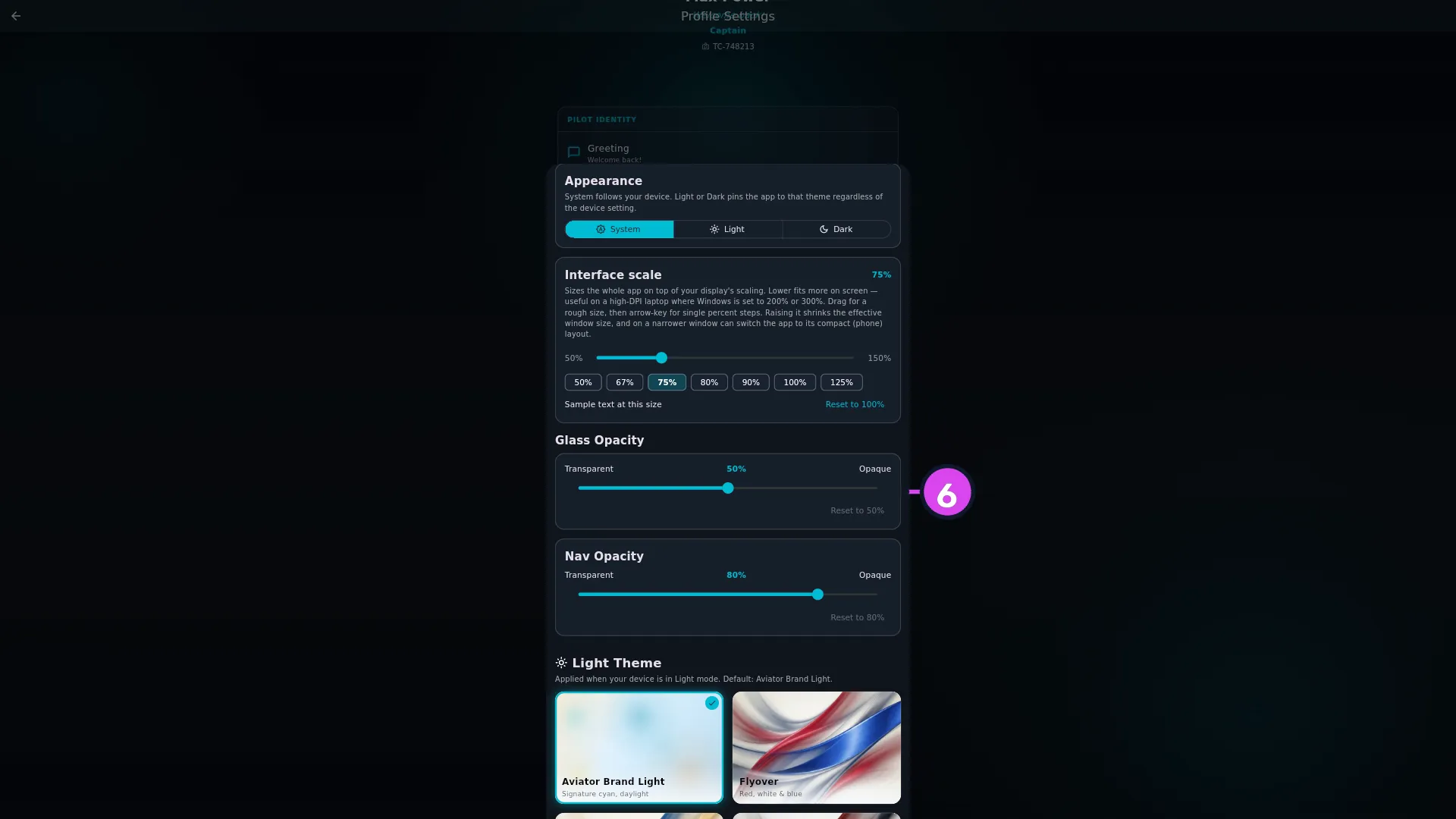
2 Theme & Livery - Tap Theme & Livery — Customize the app appearance. A sheet rises over
most of the screen. It has no title bar, so the first heading you see,
Appearance, belongs to the sheet itself — it isn’t a different screen.
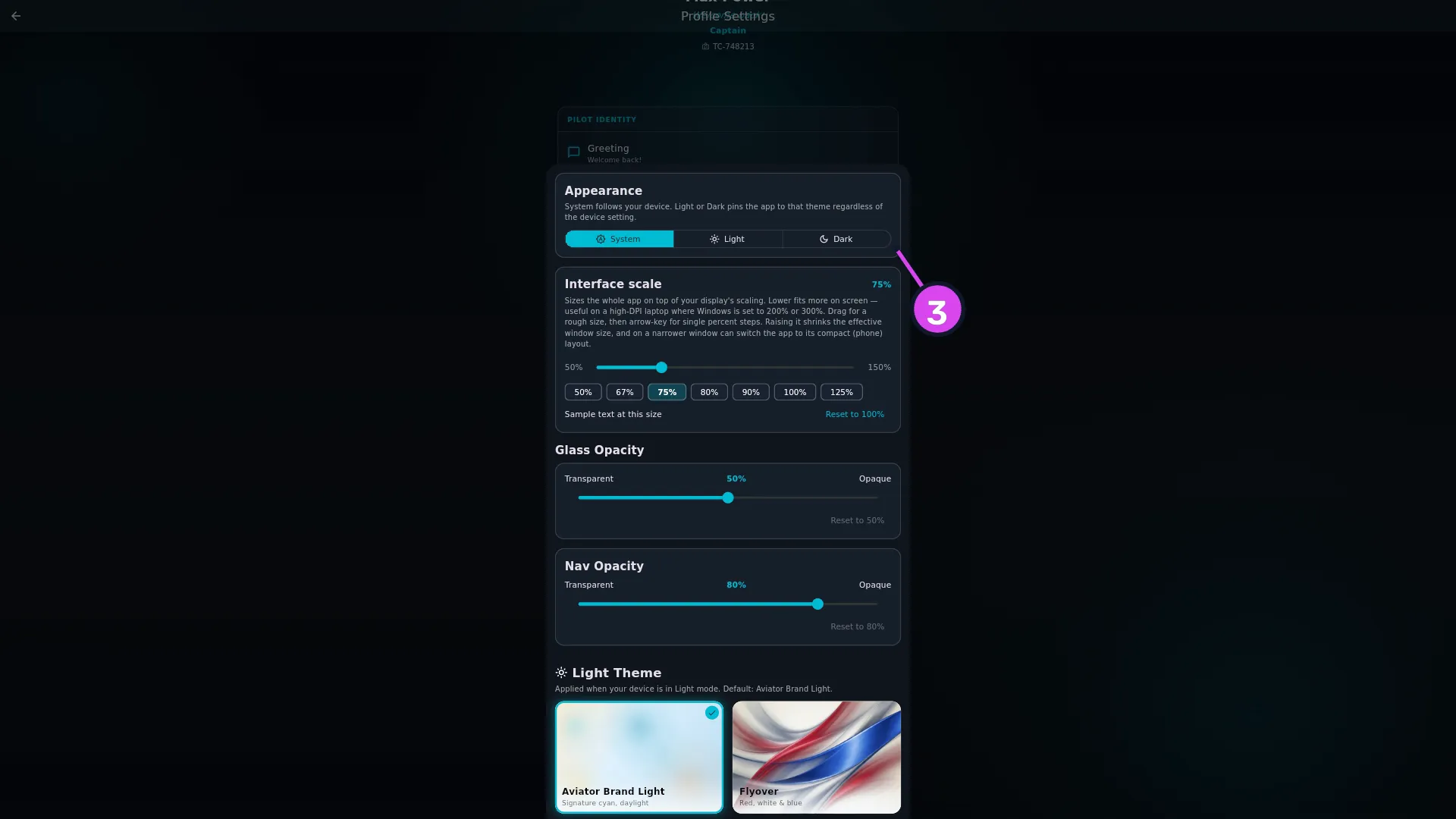
3 the System / Light / Dark segments - Under Appearance, choose System, Light or Dark. The sheet explains: System follows your device. Light or Dark pins the app to that theme regardless of the device setting.
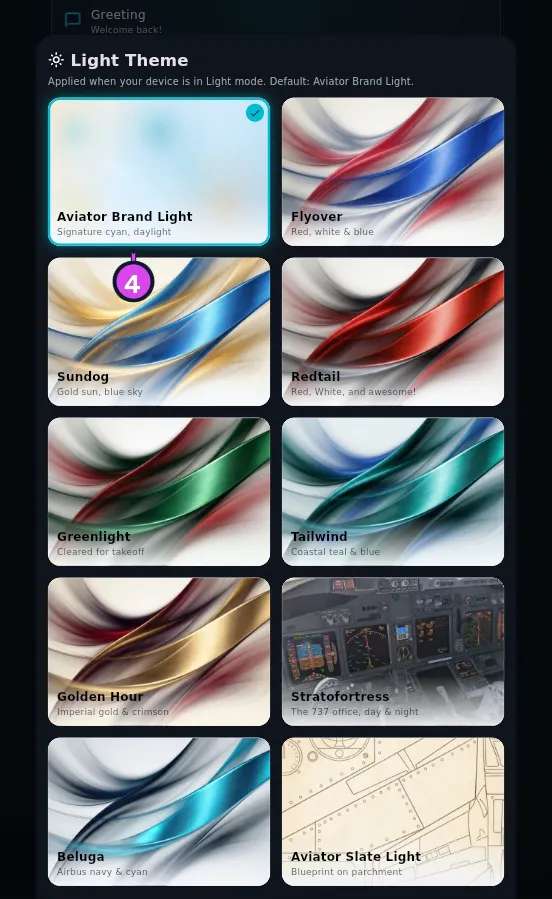
- Scroll to Light Theme — Applied when your device is in Light mode.
Default: Aviator Brand Light. — and tap a card. Ten are offered.
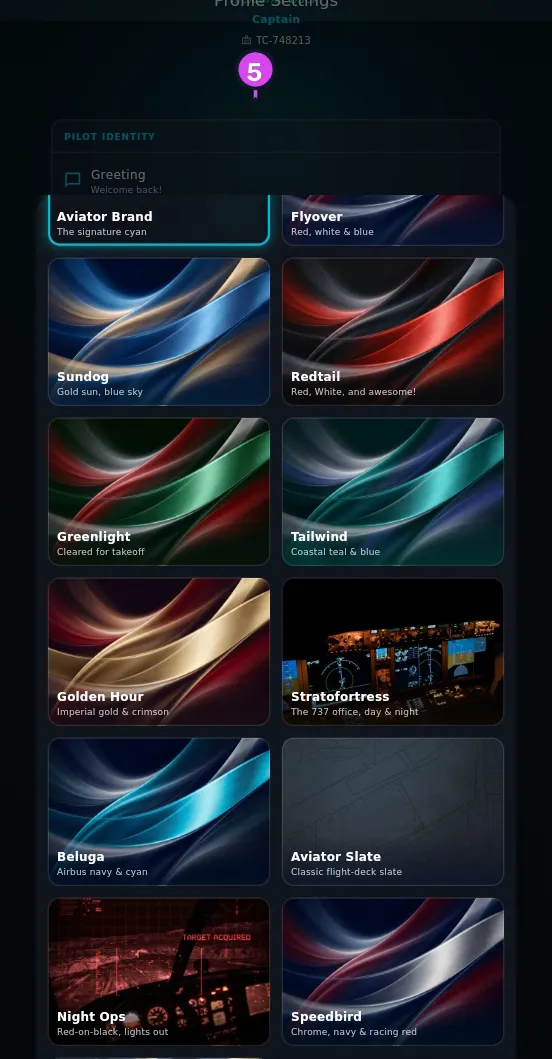
- Scroll on to Dark Theme — Applied when your device is in Dark mode.
Default: Aviator Brand. — and tap a card. Thirteen are offered.
5 the check badge on the active card - Drag Glass Opacity (Transparent at one end, Opaque at the other,
with the percentage between them) and Nav Opacity until you like the
result.
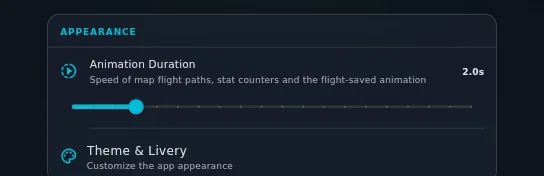
- Close the sheet. Back in APPEARANCE, drag Animation Duration to set
how long the app’s animations run — 0.5 s to 10.0 s in half-second steps,
default 2.0 s.
How to tell it worked
The app repaints while the sheet is still open — colours, wallpaper and panel glass all change behind it. The card you chose in each grid has a check badge, and closing the sheet leaves the whole app in the new look.
If something goes wrong
| What you see | Why | What to do |
|---|---|---|
| You picked a livery and nothing changed | You picked it for the mode the app isn’t in — a Dark Theme while pinned to Light, or the other way round. You choose two liveries, one per mode, and only see the one for the current mode | Switch Appearance to that mode to see it, or leave it and it’ll appear when your device changes over |
| The profile selector and the splash screen still show the default look | They always do — see The screens that stay neutral below | Nothing to do. Your choice did save, and the app itself is using it |
| Your other device still looks the way it did | Appearance is stored per logbook on this device, and doesn’t sync | Set it again there (→ J4) |
| The look went back to its defaults after a Merge restore | This device had already set its own livery, mode or opacity, so the backup’s didn’t replace it | Set it again by hand. A Merge never overwrites a choice already made here |
| The look changed by itself after a Merge restore, and you never touched it here | This device had no value of its own yet, so the backup’s filled the gap | Nothing to do. A Replace restore applies everything, whatever was set before (→ H6) |
| The panels are now unreadable | You dragged an opacity slider too far | Each slider has its own Reset to 50 % / Reset to 80 % button under it, naming the default |
The screens that stay neutral
The profile selector always uses the neutral Aviator Brand look. One installation can be shared by several people — a partner, a student, a second pilot on a shared tablet — and everybody passes through that screen before any logbook is open, so it doesn’t wear anyone’s livery.
The splash screen stays neutral too, because it’s a single ready-made image that can’t change colour with your livery.
Neither is a setting you can change.
The liveries
Fifteen names ship. Most have a light and a dark version under the same name, which is why most names appear in both grids.
| Livery | Slots | Tagline in the picker |
|---|---|---|
| Aviator Brand | dark | The signature cyan |
| Aviator Brand Light | light | Signature cyan, daylight |
| Flyover | light + dark | Red, white & blue |
| Sundog | light + dark | Gold sun, blue sky |
| Redtail | light + dark | Red, White, and awesome! |
| Greenlight | light + dark | Cleared for takeoff |
| Tailwind | light + dark | Coastal teal & blue |
| Golden Hour | light + dark | Imperial gold & crimson |
| Stratofortress | light + dark | The 737 office, day & night |
| Beluga | light + dark | Airbus navy & cyan |
| Aviator Slate | dark | Classic flight-deck slate |
| Aviator Slate Light | light | Blueprint on parchment |
| Night Ops | dark | Red-on-black, lights out |
| Speedbird | dark | Chrome, navy & racing red |
| The Crane | dark | Champagne gold & navy |
They’re colour schemes, not airlines. Flyover is the red-white-and-blue palette that a dozen flags and as many carriers share; Golden Hour is the gold-and-crimson one you see across the Gulf, China and India. Two are homages meant to be recognised: Speedbird and The Crane. Picking any of the rest says nothing about who you fly for.
The eight paired liveries — Flyover through Beluga — paint a silk-ribbon wallpaper behind the glass, except Stratofortress, which uses 737 flight-deck photography. Aviator Slate, Aviator Slate Light, Night Ops, Speedbird and The Crane have older backdrops of their own, and the two Aviator Brand liveries have no wallpaper — they paint the brand backdrop.
Glass Opacity and Nav Opacity apply to the light and the dark livery at once, and keep their values when you change livery.
What Animation Duration drives
The row’s subtitle names all three: Speed of map flight paths, stat counters and the flight-saved animation. They move together — the flight path drawn on a map, the counters in the logbook stats bar, and the animation you see when a flight is saved. Set it low if the stats bar is slow to settle, and the flight paths speed up with it.