
Interface scale (desktop only)
What this does
Makes the whole app smaller or larger on a desktop computer, on top of whatever scaling Windows, Linux or macOS is already doing.
On Linux it does more than that: GTK 3, which the app draws its window with, has no fractional scaling, so on a high-density screen this is the setting that gets the size right. The other ways the app differs on Linux are in Is there a pilot logbook for Linux? in the library.
Before you start
- This control exists on Windows, Linux and macOS only. On Android and iOS, use your device’s own display-size and font-size settings instead.
- A profile is open, because the way in is through Profile Settings.
- The setting belongs to this computer, and applies to every logbook on it. It isn’t part of your logbook, so it doesn’t sync, and restoring a backup on a new machine starts you at 100 %.
Steps
- On the dashboard, tap your own profile card at the top to open Profile Settings, scroll to APPEARANCE and tap Theme & Livery.
- Find the Interface scale card in the sheet, under Appearance and above
Glass Opacity. Its current percentage is on the right of its heading.
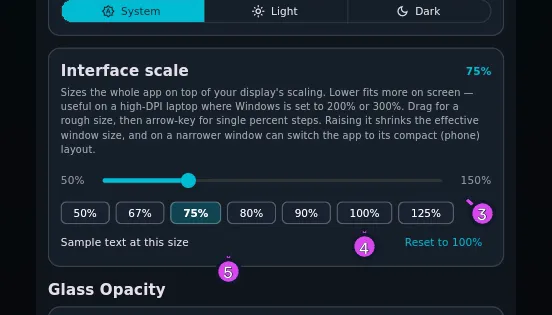
3 the slider — 50% to 150% of normal size4 the chips — for a fixed size instead5 Sample text at this size - Drag the slider. It runs from 50 % to 150 % in steps of one percent, and the default is 100 %. The card explains: Sizes the whole app on top of your display’s scaling. Lower fits more on screen — useful on a high-DPI laptop where Windows is set to 200% or 300%. Drag for a rough size, then arrow-key for single percent steps.
- For a fixed size, tap one of the chips instead: 50%, 67%, 75%, 80%, 90%, 100%, 125%.
- Check the size against Sample text at this size, under the slider. It’s the reliable preview — whatever you were reading has moved by the time you let go.
- To undo everything, tap Reset to 100%, bottom right of the card. It’s greyed out when you’re already at 100 %.
How to tell it worked
The app resizes live while you drag, and stays that size when you let go — the value is saved at that moment, not while you’re dragging. Reopen the sheet and the same percentage is beside Interface scale.
If something goes wrong
| What you see | Why | What to do |
|---|---|---|
| The Interface scale card isn’t in the sheet | You’re on a phone or a tablet, and the card is desktop-only | Use your device’s own display-size and font-size settings |
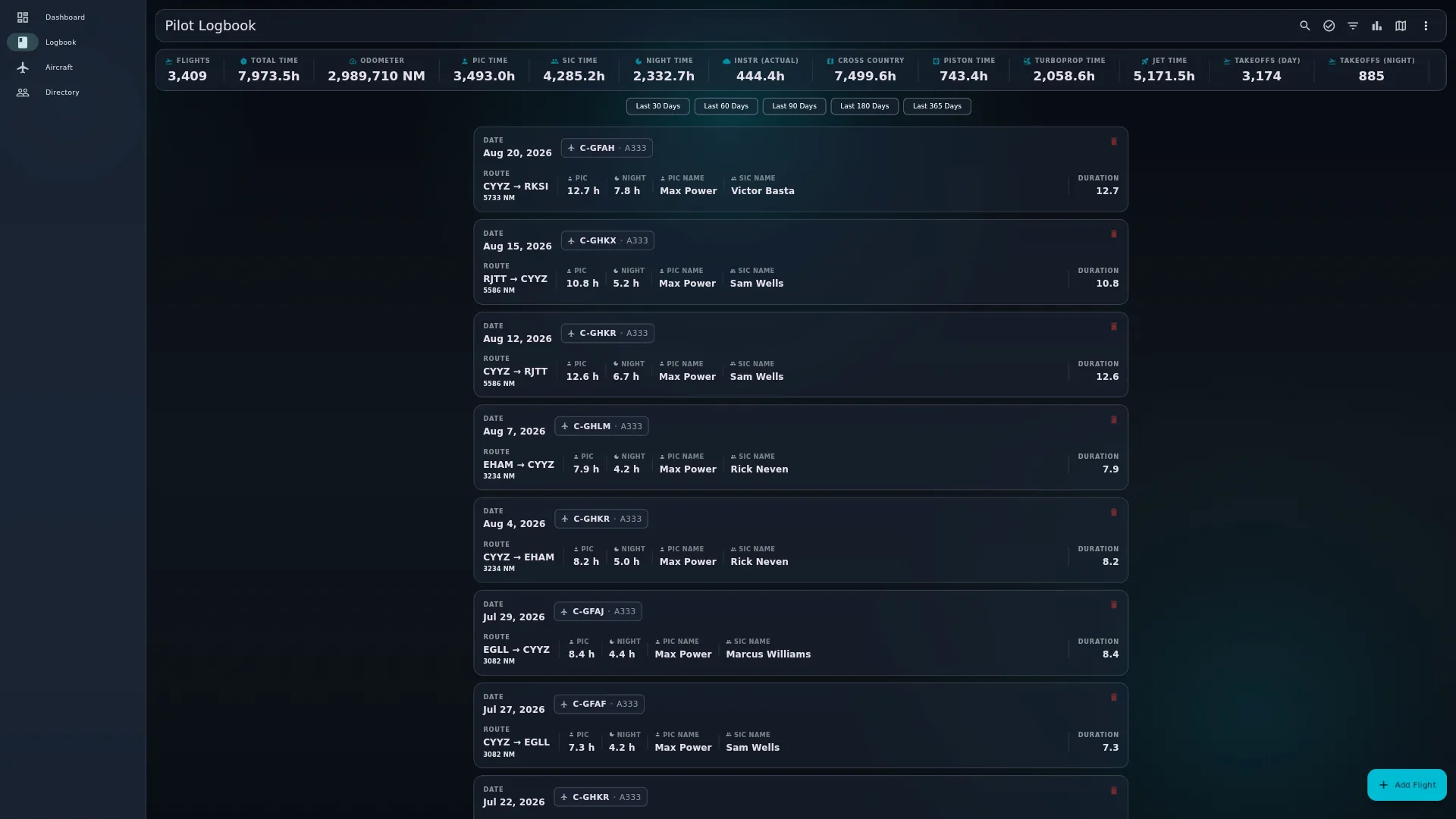
| The logbook, the Hangar, the Directory or a flight suddenly look like the phone layout | See below | Lower the scale, or widen the window |
| The slider won’t go past 150 %, or below 50 % | Those are the limits. Any smaller and the control that undoes it could end up too small to use | Nothing to do |
| A new computer opened your restored logbook at 100 % | The scale belongs to the computer, not the logbook, and isn’t part of a restore | Set it again here |
| The value jumps back while you drag | The app previews as you move, and saves when you let go | Let go of the slider, or tap a chip |
What it scales
Everything — text, icons, spacing, and the size of the things you tap or click. It isn’t a font-size setting.
Why a bigger interface can give you the phone layout
The app picks its wide or narrow layout by how wide it thinks the window is, and this setting divides that width. A window 900 pixels wide at 125 % counts as 720, which is under the 800-pixel threshold — so the logbook list, the Hangar and the Directory all switch to their narrow, single-column layout with nothing else having changed. The flight detail view and the entry wizard have lower thresholds of their own (the detail view drops to one column under 680, and to a full-screen sheet under 600), and they switch the same way once the divided width crosses them.
The change is sudden, at a threshold you can’t see, which is why it looks as though the app redesigned itself. Scaling down does the reverse, and can give a small window the wide layout. So if a screen changes shape after you move this slider, that’s what happened — move it back, or make the window wider.