
Edit several flights at once
What this does
Sets the same value on many flights in one pass — bulk edit — using the same entry form you log a single flight with.
Before you start
- You’re in the logbook list, and the flights you want to change are all in it (→ D1). Filter or search first if that makes them easier to select (→ D4, D5).
- The change applies to every selected flight, and there’s no undo. Check the count on the selection bar before you save.
- Some sections can’t be set in bulk — crew, approaches and tags among them. Those you change one flight at a time (see What bulk edit leaves out, below).
Steps
- In the logbook toolbar, tap the multi-select icon — tooltipped Enter
Multi-Select. A long press on any flight card turns the mode on too, and
selects that flight.

- Tap each flight you want to change. A bar appears showing N Selected, with
a ×, a pencil and a bin on it.
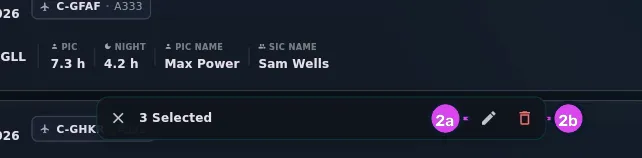
2a the pencil — opens bulk edit2b the bin — deletes the selection - Tap the pencil — the middle control, between the count and the bin.
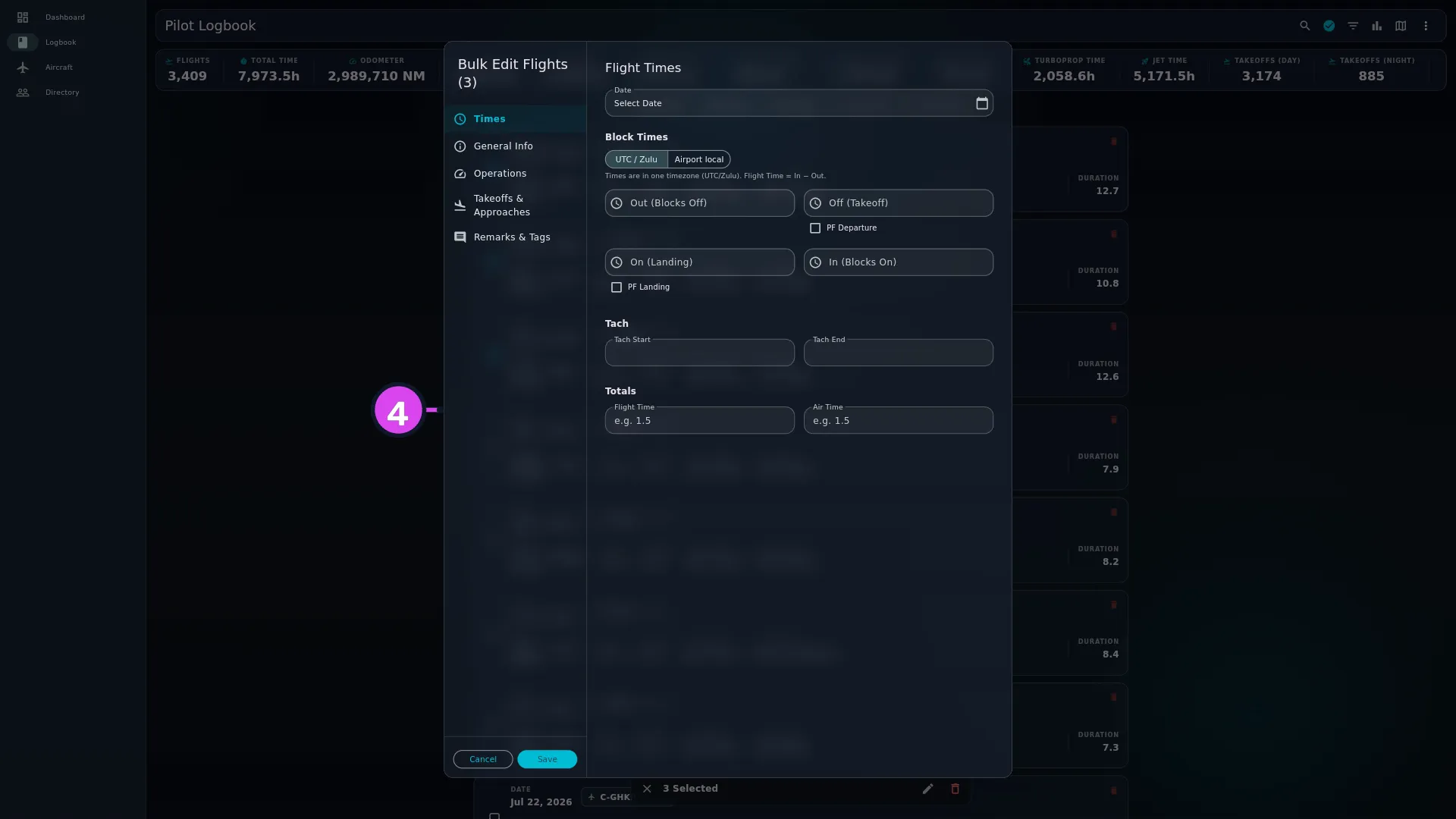
- The entry form opens, empty, titled Bulk Edit Flights (N), with its
sections in a sidebar — on a phone too. Fill in only the fields you want set
on all of them.
- Tap Save.
Only the fields you actually touch get written. Every field you leave alone is left alone on every selected flight. The form opens empty and stays empty except where you type, because it isn’t showing you a flight — it’s a list of changes to make.
How to tell it worked
The form closes and you’re back in the logbook list with the selection cleared. Open two or three of the flights you changed and check the field you set: it holds the new value, and everything else on those flights is as it was.
If something goes wrong
| What you see | Why | What to do |
|---|---|---|
| The times changed but Flight Time didn’t | Setting Out and In in bulk writes both times to every flight, but leaves each flight’s total as it was | Set Flight Time yourself in the same pass, or open the affected flights and correct the total (→ C2) |
| Takeoffs & Approaches shows a notice where the approach editor should be | Approaches are per-flight | Open the individual flight (→ C5) |
| The pencil has no tooltip when every other control in the bar does | It doesn’t have one | Identify it by position: it’s between N Selected and the bin |
| The form is cramped, with a sidebar taking a third of a phone screen | Bulk edit uses the desktop two-pane layout on every device, so it won’t look like the phone form you know from C1 | Work on a wider screen where you can, or scroll the narrow column |
| Error performing bulk update: … | The save failed part-way through | Check a few of the selected flights before you repeat the edit, so you don’t apply it twice |
What bulk edit does carry
These are written to every selected flight when you set them. Some flights — often ones brought in by an import — have nothing saved yet on Times or Operations. Those get the section filled in as part of the edit, with the values you’re setting, so no flight in the selection is skipped.
| Section | Fields |
|---|---|
| Times | The four block times, the time basis, Tach Start, Tach End, Flight Time, Air Time, PF Departure, PF Landing |
| General Info | Aircraft Registration, Departure and Arrival — each picked from the list, not typed — Route, Flight Number, Operating Under, Cross Country, Diversion and Original Destination |
| Operations | Every hours bucket on the section, the Oceanic and ETOPS checkboxes and the hours fields they reveal, plus Fire Acres, Spray Acres, Pesticide / Agent Name, Initial Launch Elevation AGL, Winch Launch and Tow Launch |
| Takeoffs & Approaches | Every counter — takeoffs, all four kinds of landing, passengers, holds, go-arounds. The approach list itself isn’t here — see below |
| Remarks | Remarks / Comments. The Tags beside it don’t write — see below |
That covers what bulk edit is really for: moving a month of legs onto the right aircraft, putting the operating rule on a season of flying, or correcting a flight number across a series.
What bulk edit leaves out
Crew, External Loads, Additional Fields, and Duty, Schedule & Fuel aren’t offered in bulk mode at all — they’re missing from the sidebar, because each holds separate entries per flight rather than one value bulk edit can copy across a selection. Takeoffs & Approaches keeps its counters but drops the approach list, and Tags, on Remarks, is left out the same way. Photos aren’t on this form in any mode. Set any of these one flight at a time (→ C1). And if a section this guide names isn’t in the sidebar at all, it’s been hidden: every section except Times can be turned back on in Profile Settings → Entry Form.
Approaches and Tags say so themselves. In bulk mode the approach list on Takeoffs & Approaches is replaced by a notice: Approaches are per-flight. Open a single flight to add or edit them. The counters above it still write.
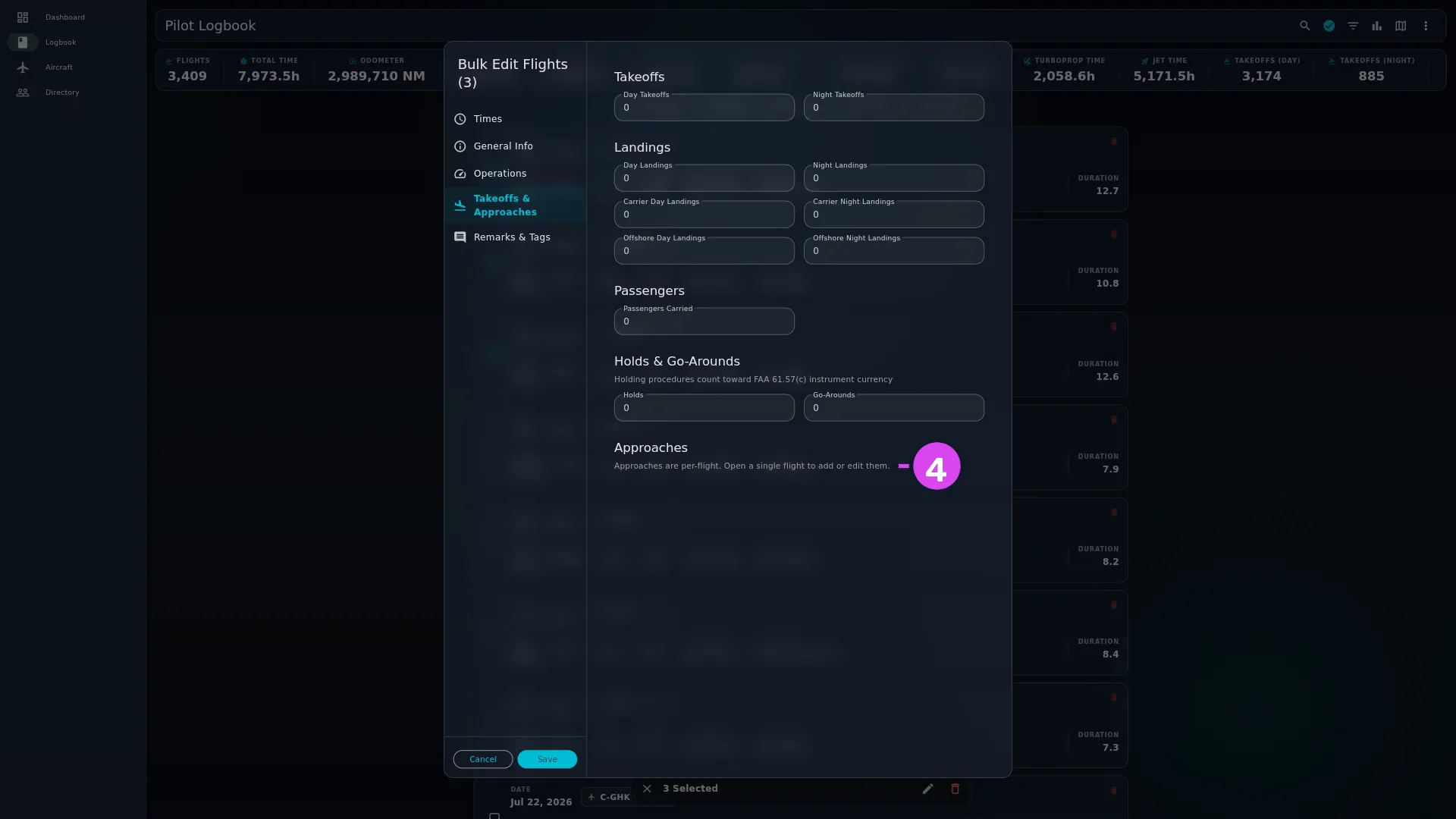
Tags, on Remarks, carries the same kind of notice where the tag editor would be: Tags are per-flight and cannot be set across a selection. Open a single flight to tag it. Remarks / Comments beside it still writes.
Deleting a selection
The bin on the selection bar deletes every selected flight. It asks first — Delete Flights?, Are you sure you want to delete N flights? This cannot be easily undone. — with Cancel and Delete.
Check the number in that sentence. It’s how many flights are about to leave your logbook, and a backup is the only way any of them come back (→ H4, H6).
Leaving selection mode
The × on the bar is tooltipped Clear Selection, but it does more than that: it leaves selection mode altogether, the same as the toolbar icon — now tooltipped Exit Multi-Select. Unticking the last selected flight does the same. The Add Flight button is hidden while you’re selecting, which is the quickest way to tell which mode the logbook is in.