
Move a profile over the air
What this does
Puts the logbook you already have onto a device that can’t scan a QR code — usually a desktop.
You type a short code, then check a row of five emoji. The new device ends up holding the same logbook under the same identity, exactly as the QR path leaves it.
Before you start
- Don’t create a new profile on the new device. A profile created there is a different logbook, and the two will never find each other (→ A2).
- Both devices need an internet connection and the same Wi-Fi. The short code goes through Aviator Archive’s relay, which introduces the two devices to each other. The logbook itself then travels directly between them over your Wi-Fi. The relay never carries your logbook — only the sealed introduction, which it can’t read.
- The logbook open on the device that has it, and the new device signed in to your Aviator Archive account, or ready to sign in when it’s asked.
- Both devices in front of you. The short code lasts five minutes — less than an invite’s fifteen.
Steps
- On the device that already has your logbook: open Cloud-Less Sync, tap
the QR icon (Invite a device), then tap Send over the air. After
Preparing a secure code… it shows an eight-character code grouped as
ABCD-EFGH, with Copy code beneath it, and waits: Waiting for the other device…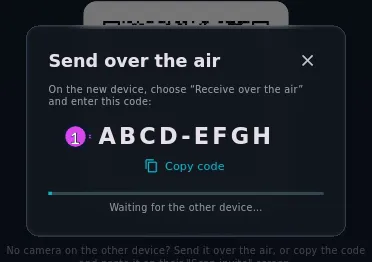
1 the code to type on the other device - On the new device: open the scanner — the profile selector’s + →
Scan invite if it has no logbook yet, or the scanner icon on Cloud-Less
Sync if it does — and tap Receive over the air. (It’s there both under
the live camera and on the no-camera screen.) Type the code into the field
showing
ABCD-EFGH, and tap Connect.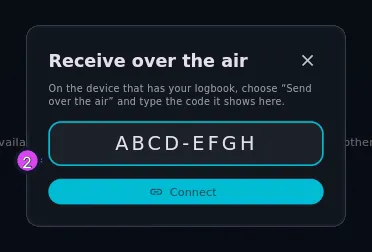
- On both devices: each now shows Do these emoji match? with a row of five emoji. Hold the two screens side by side and compare all five, in order (see You are the check, below).
- On both devices: if all five are identical, tap They match on each. If anything differs, tap They don’t match and start over with a fresh code. The screen warns that somebody may be intercepting, and not to continue.
- On the device that already has your logbook: it reads Sent, with “The other device is receiving the profile now. Keep both devices on the same Wi-Fi until it finishes.” Tap Done and leave the device awake.
- On the new device: finish as the QR path does — Join “<name>”? → Bring it over → sign in → Receiving profile… N% → Profile received. I2 has these step by step, from step 4.
How to tell it worked
The new device finishes on Profile received, and the logbook turns up in its profile selector. Open it, then open Cloud-Less Sync on either device: the other one is in the list, and a sync between them runs without asking for anything (→ I5).
If something goes wrong
| What you see | Why | What to do |
|---|---|---|
| That code wasn’t found. It may have expired — generate a new one on the other device. | More than five minutes passed, or a character was mistyped | Check the code, or tap Start over on the sending device for a fresh one |
| That code was already used. Generate a new one on the other device. | A code introduces one pair of devices, once | Generate a new one |
| The pairing code expired. Start over to get a fresh one. | The five minutes ran out while you were still on the code screen | Start over on the sending device, Try another code on the receiving one |
| The other device failed verification — pairing was tampered with. Start over. | The two devices couldn’t prove to each other that they were talking directly | Start over on a network you trust. If it keeps happening, use the QR path instead (→ I2) |
| The pairing channel expired before it finished. | The relay closed before the two devices had finished introducing themselves | Start over with a fresh code |
| The invite couldn’t be read. Make sure the emoji matched, then try a fresh code. | The introduction couldn’t be read — usually because They match was tapped when the emoji didn’t match | Start over, and compare all five emoji this time |
| Could not connect: … or Could not establish a secure channel: … | One of the devices couldn’t reach the relay | Check both have internet, then start over |
| The code exchange works, and the transfer then fails | The two devices aren’t on the same Wi-Fi. The relay only needs the internet; the logbook needs your local network | Put both on the same Wi-Fi and start over. The failure always shows up one screen after its cause |
You are the check
The five emoji are the security of this path. The app treats the relay that carried your code as a public mailbox — anybody could drop something into it. What proves the two devices are talking to each other, and not each to something in between, is that the same five emoji came up on both screens. Nothing else in this flow does that job.
So look at both screens before you tap They match. Five emoji leave an attacker one blind guess in about a billion. Tapping without looking leaves them nothing to guess.