Shows every device signed in to your Aviator Archive account, marks the ones that
sync this logbook, and lets you remove one.
That’s how you deal with a phone you’ve lost, sold or stopped using.
Before you start
Nothing on this screen deletes a logbook or a flight. Removing a device leaves
every copy of your data where it is, including the copy on that device
(→ A10).
To take a device off your account as well as off this logbook, this device
needs a connection and a current sign-in. Without one, a device can still come
off this logbook’s member list, and the screen tells you which you’ll get.
You can’t remove the device you’re holding. To stop using it, sign out on it
instead.
Steps
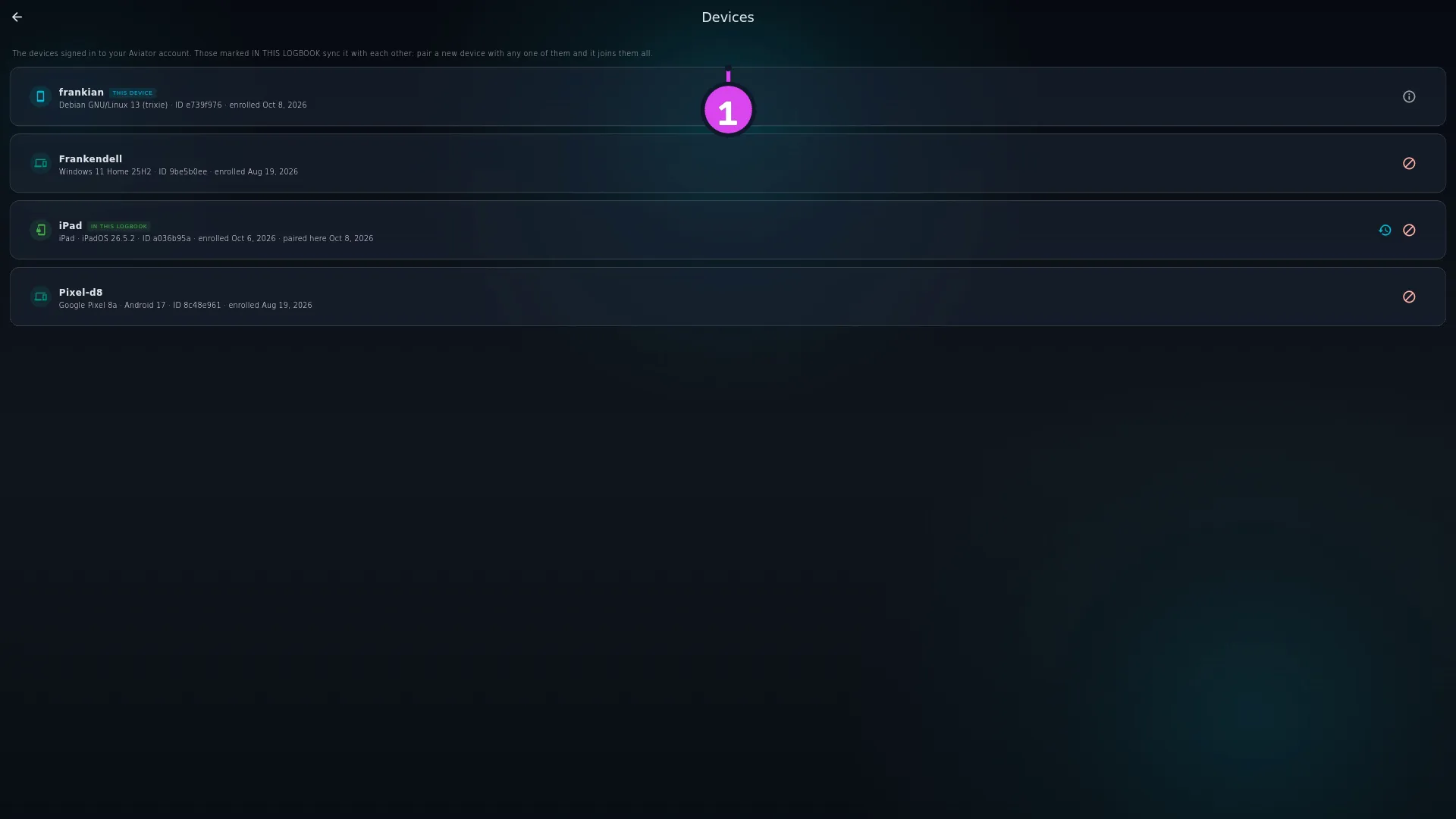
Open Profile Settings → Account & Data → Devices. (It isn’t on the
sync screen.) It’s one list, introduced as “The devices signed in to your
Aviator account. Those marked IN THIS LOGBOOK sync it with each other: pair a
new device with any one of them and it joins them all.”Expand1 the intro — one list
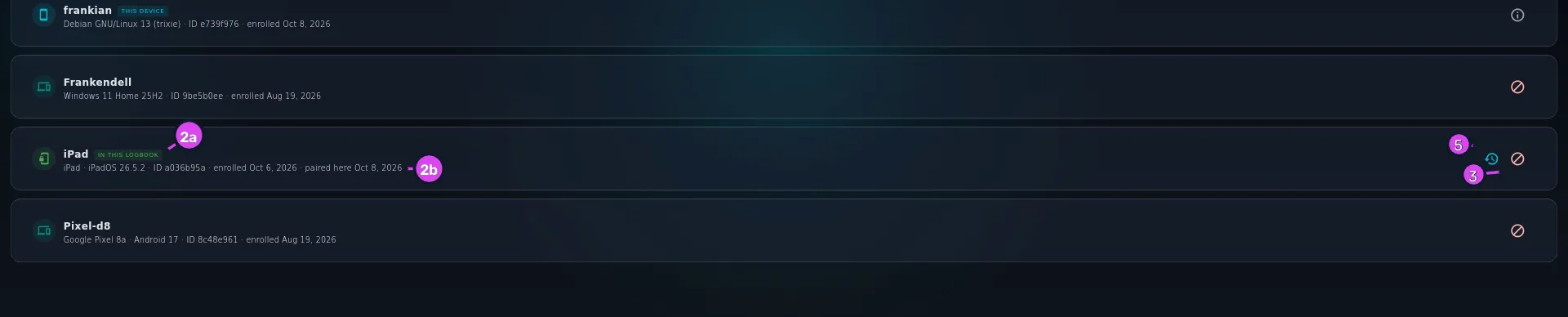
Find the device. Its entry carries the badges that apply — THIS DEVICE for
the one you’re holding, IN THIS LOGBOOK for a member, EXPIRED for one
whose sign-in has run out — and a line of details joined by dots: the device
type, a short ID such as ID 1a2b3c4d, when it was enrolled, and for a
member, how it joined: paired here <date>, paired by <device
name> or paired <date>. The short ID is the reliable way to tell
two similar devices apart: on the device itself, the entry marked THIS
DEVICE shows the same ID.
Expand2a IN THIS LOGBOOK2b the detail line with the short ID3 Remove device5 Reset Sync Status — resends everything next time
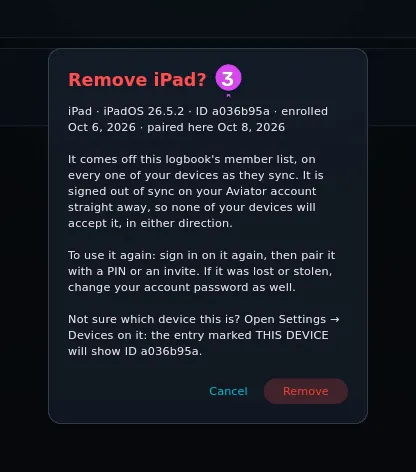
To take a device away, tap Remove device (the block icon) on its entry.
The confirmation, Remove <name>?, repeats the device’s details so
you can check it’s the right one, then says what removing it does — see
What Remove does, below. Tap Remove.
If that device is the only one vouching for another device that this one
has never synced with, a second dialog follows: Devices paired through
<name>, with each of them unticked. Tick any you recognise to keep
them in this logbook, and tap Remove. The ones left unticked need pairing
again with a PIN (→ I4). Cancel removes nothing.
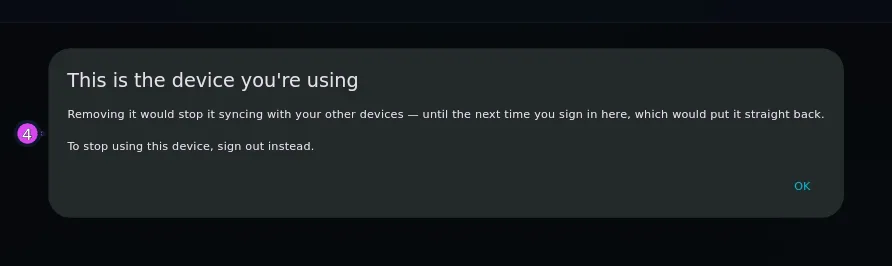
The device you’re holding has no Remove device button. Tap the ⓘ beside it
— tooltip Why can’t I remove this one? — to see why: removing it “would
stop it syncing with your other devices — until the next time you sign in
here, which would put it straight back.” To stop using this device, sign out
on it instead.
To make this device send everything to a member again, tap Reset Sync
Status (the restore icon) on that member’s entry and confirm with Reset
Sync. The next sync this device starts sends everything again. The
message tells you what it did — see What Reset Sync Status tells you,
below.
How to tell it worked
After a removal, <name> removed. appears and the entry leaves the list —
or, when only the logbook half could be done, stays on the list without its
IN THIS LOGBOOK badge. This device refuses the removed one straight away;
your other devices follow as described in When a removal takes effect.
If something goes wrong
What you see
Why
What to do
Your session has expired, so this list may be out of date and devices can only be removed from this logbook, not from your account. Sign in again to manage them fully.
Without a current sign-in, the account half of the list is read-only
Sign in again on this device, then pull down to refresh
Couldn’t reach Aviator, so this list is from <date>. Pull down to retry.
No connection, so you’re looking at a saved copy of the account list
Reconnect and pull down. The date tells you how old it is
Could not load your account devices, so only this logbook’s members are shown.
The account list couldn’t be fetched
Check the connection and pull down to retry
No devices yet. Signing in on a device adds it here; pairing it from Cloud-Less Sync adds it to this logbook.
No device is signed in to the account, and none is paired with this logbook
Sign in on each device you want to sync, then pair them (→ I2, I4)
Could not remove <name> from this logbook. Try again. or Could not remove <name> from your account. Try again.
That half of the removal didn’t go through — the account half needs a connection and a current sign-in
Check the connection, sign in again if your session has expired, and tap Remove device again
A member whose details end not on your account list, sometimes named Paired device or Unnamed device
Its device isn’t on your account’s list: it was removed from the account, or the list didn’t load. Paired device is the name an older app version leaves when it pairs without sending its own
Pull down to refresh. If it’s still there and you don’t recognise it, remove it: a device of yours removed by mistake comes back by pairing again (→ I4)
A member whose details end uses the same device ID as <device>
Two members claim one device. One is usually that device’s old key from before it was paired again; one you don’t recognise may not be that device at all
Remove the one you don’t recognise. If it was that device’s old key, nothing changes for the device
What Remove does
It’s one action that does two things, and the confirmation lists whichever apply:
For a member: “It comes off this logbook’s member list, on every one of your
devices as they sync.”
For a device on your account, while you’re signed in: “It is signed out of
sync on your Aviator account straight away, so none of your devices will accept
it, in either direction.” If your session has expired instead: “Your session
has expired, so it stays on your account until you sign in again and remove it
there too.”
Devices that joined through the one you remove stay, as long as this device
has synced with them itself. Any other device that only the removed one
vouched for is listed in Devices paired through <name>, and stays only
if you tick it. A device this one has never met could be one the removed device
added without you knowing.
The logbook already on that device stays on it: removing reaches your other
devices, not that device’s storage.
Bringing a removed device back
A removed device stays off your account until someone signs in on it again —
even if it was still signed in when you removed it. Until then its
Cloud-Less Sync screen says “This device was removed from your account, so
it won’t sync. To use it again, sign in here, then pair it with one of your
other devices.”, with a SIGN IN button.
On the removed device: tap SIGN IN on that message, and sign in to the
same account.
On the removed device: in Cloud-Less Sync, tap any one of your other
devices. Start from this one: your other devices know it was removed and
won’t start a sync with it.
On the other device: a Connection Request shows six digits. Type them
on the removed device, leave Trust this device ticked, and tap
Connect (→ I4).
Once your devices have synced, all of them accept it again. A device that was
wiped or reinstalled comes back the way a new one joins instead: sign in, then
scan an invite (→ I2).
Removing a device keeps the ones it paired. If the phone you remove was the
device that paired your tablet, the tablet stays a member. The device you remove
it from vouches for it instead, and nothing needs pairing again.
When a removal takes effect
This device refuses the removed one as soon as you tap Remove. Your other
devices hear about it two ways: the member list reaches each of them at its next
sync, and the account removal from the next time that device refreshes its
account list — which happens when the app opens with a live session, and when you
open this screen on it. A device left running untouched, and not synced, can go
on accepting the removed one until one of those happens.
What Reset Sync Status tells you
Reset Sync Status clears this device’s bookmark of what it has already sent
that device. It looks for the bookmark by the device’s own ID first, then by the
name on the entry — including an entry reading Paired device, the placeholder
an older app version leaves behind. It always does something real, and says
which:
Message
What happened
Sync status reset. Re-connect to sync everything.
It found that device’s bookmark and cleared it
Could not identify this device’s bookmark, so all N were cleared. Re-connect to sync everything.
Neither the ID nor the name matched, so it cleared every bookmark on this device
No sync bookmarks were stored — the next sync already sends everything.
There was nothing stored to clear
For a lost or stolen device, change your password too
The confirmation says so — “If it was lost or stolen, change your account
password as well.” A removed device can’t sync this logbook again without two
things: a new sign-in on it, and a PIN shown on one of your own devices. The
password is the part of that a thief could have. Change the password of the
Google or Apple account you sign in with, so the phone can’t sign in again.