Shows you what an incoming sync overwrote on this device, field by field, and
lets you put your own version back if the wrong one won.
Before you start
At least one sync that brought in something this device already had (→ I5).
Until then, the log is empty.
When both devices changed the same record, the later edit wins the whole
record, not field by field (→ I1). This screen is where you find out what that
cost you.
Anything you restore here is a new edit, not a rewind. It goes to your
other devices on the next sync, and until then the two devices disagree.
Steps
On Cloud-Less Sync, tap the clock icon in the app bar, tooltip Changes
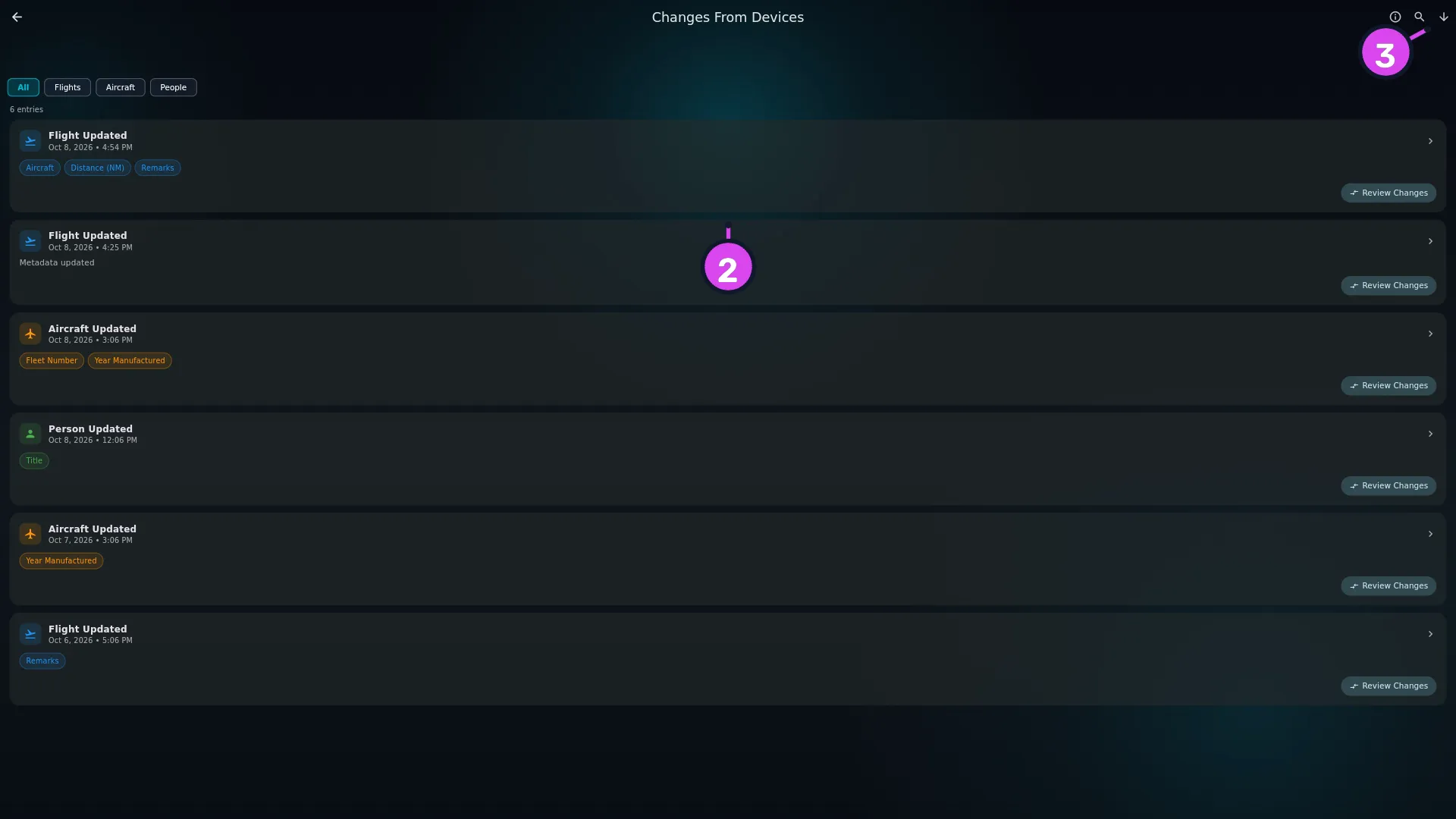
From Devices. A screen of the same name lists what incoming syncs replaced
here, newest first.
Expand
Find the entry you’re after. Each shows <Thing> Updated, the date it
arrived, and up to five chips naming the fields that changed, with +N more
if there were others.
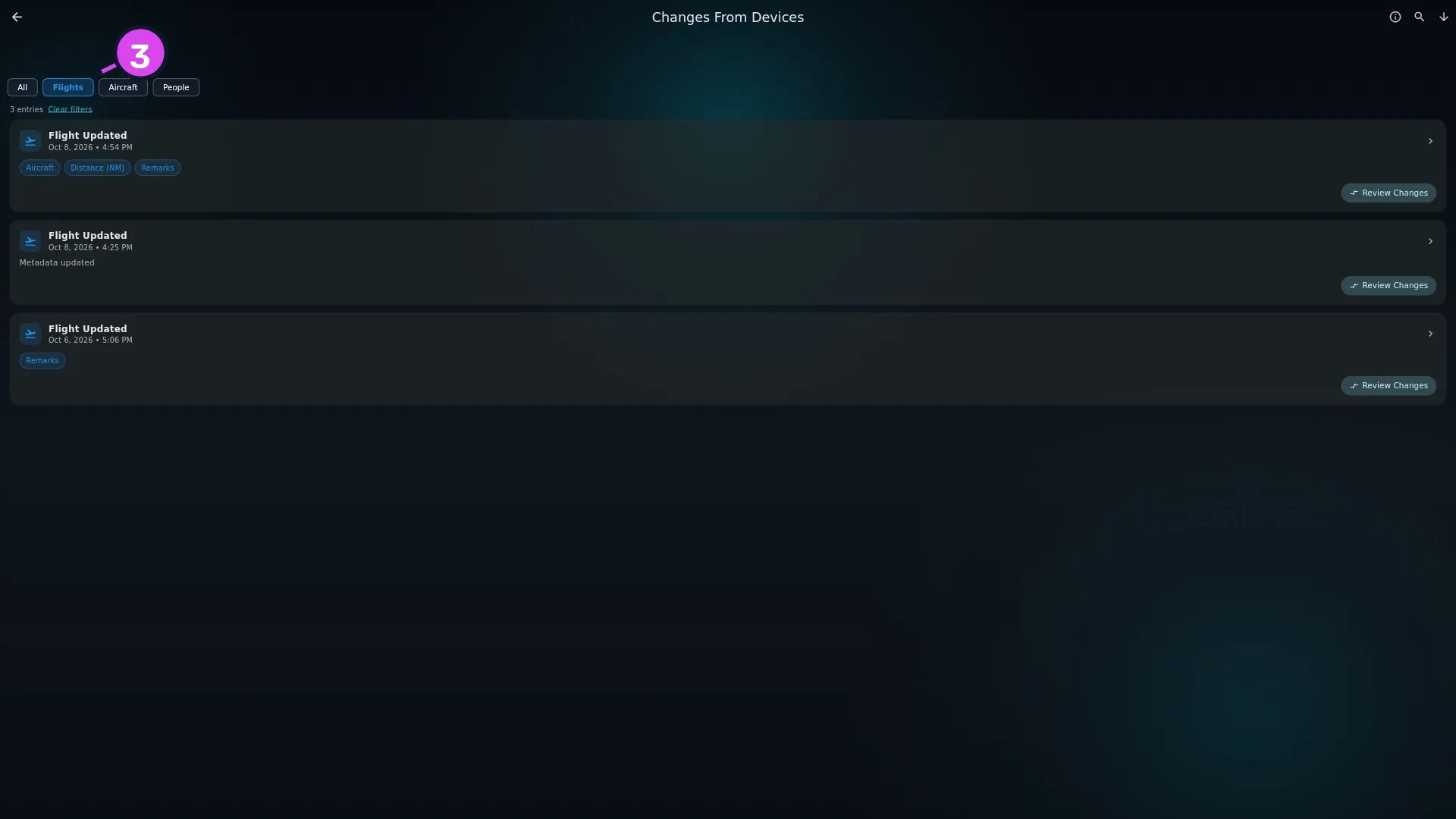
If the list is long, narrow it with the search box, the newest/oldest toggle,
or the filter chips — All, plus one for each kind of record in the log,
out of Flights, Times, Ops, Aircraft, People, Crew,
Approaches and Attachments. If a filter leaves nothing showing, tap
Clear filters to put it back.
Expand
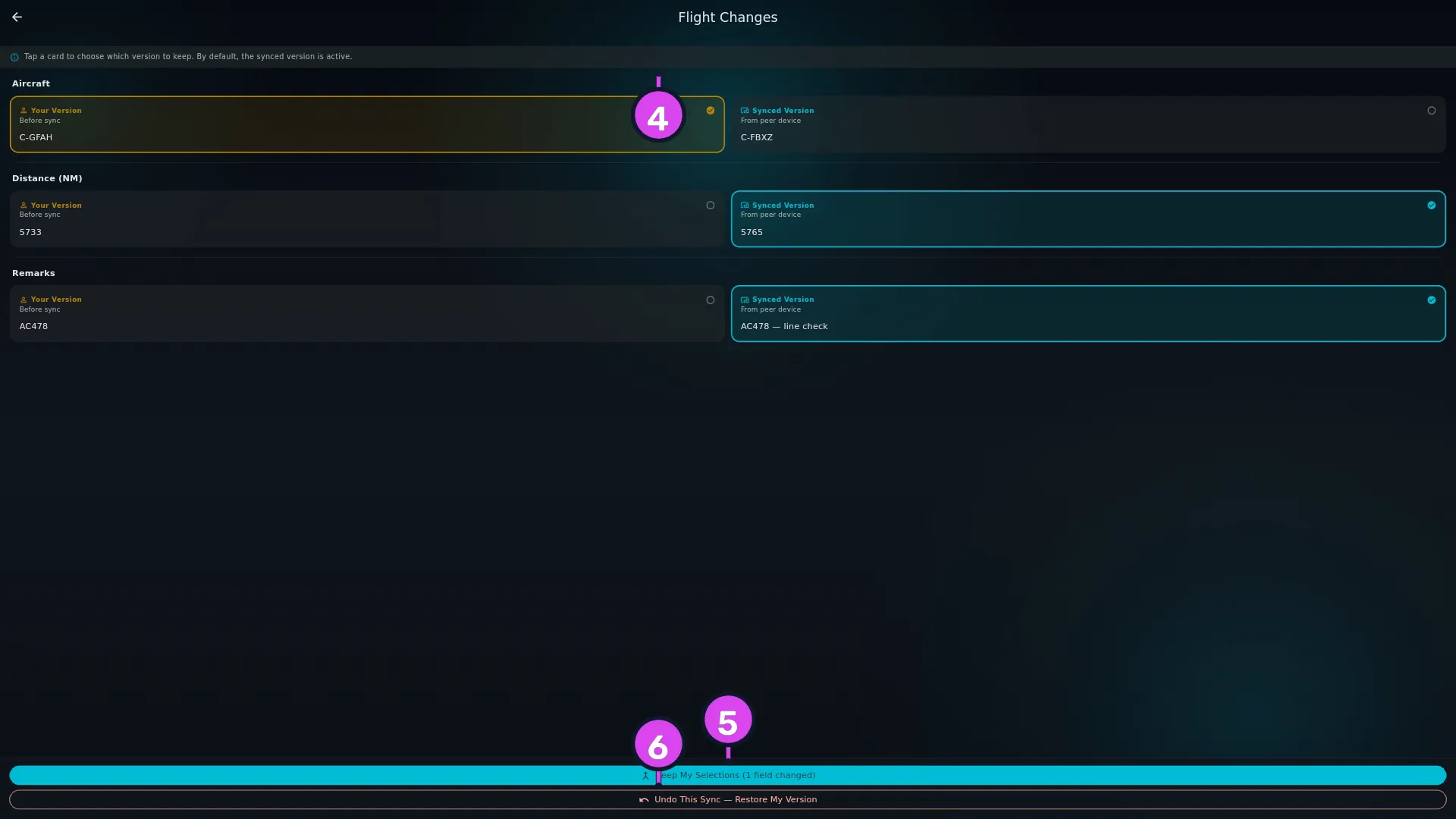
Tap Review Changes on that entry. Each changed field is shown as two
cards: Your Version / Before sync, and Synced Version / From peer
device. The banner says “Tap a card to choose which version to keep. By
default, the synced version is active.” A field that was empty on the other
device says This field has no value on that device.Expand
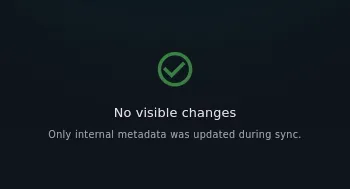
Many entries open on No visible changes / Only internal metadata was
updated during sync. That’s normal: the record came across, but nothing you
can see changed.
To keep a mixture, tap the card you want for each field, then tap Keep My
Selections (N fields changed), and confirm. The fields you chose are saved
and sent to your other devices as the latest version.
Or, to put the whole record back as it was before the sync, tap Undo This
Sync — Restore My Version, and confirm. The record returns to its pre-sync
state, and that version is sent back to your other devices.
Both buttons work on every entry this screen can show — all thirteen kinds of
main record the log tracks (see below).
How to tell it worked
A message reads Record updated successfully, and the record itself — the
flight, the aircraft, the person — shows the values you chose. The entry stays in
the list, because it’s a record of what arrived, not a task to tick off. The other
device doesn’t know about your decision until the next sync, so sync when you’re
done (→ I5).
If something goes wrong
What you see
Why
What to do
No sync history yet / Changes received from other devices will appear here.
No incoming sync has overwritten anything on this device yet
Nothing to do. An empty log is normal for a device that only sends
No entries match your filter
A chip or a search term is still active
Tap Clear filters
A change you know a sync made isn’t in the list
The log covers much less than its name suggests — see below
Check the section below before you decide anything was lost
Error saving: …
The restore couldn’t be saved
Try again. If it keeps happening, sync once and check whether the value you wanted is there anyway
The other device still shows the old values after you restored
Expected. A restore is an edit, and edits travel on the next sync
Run a sync (→ I5)
What this log does not contain
The screen’s name promises more than it holds, and the difference matters when
you’re working out what a sync did.
It only lists overwrites. An entry appears when this device already had the
record and the incoming version replaced it. A record arriving here for the first
time isn’t listed, and nor are deletions. So a sync that brought in 200 new
flights can leave this screen empty.
It only covers the main records — flights, aircraft, people, airports,
organizations, aircraft types, employment history, training events, authorities
and the currency settings. A change to a flight’s crew, times, approaches or
attachments isn’t logged on its own; the flight’s entry stands in for all of
them.
It’s local. The log isn’t synced, so each device has its own account of what
happened to it, and the two never match. That’s expected — they’re records of
different events.
So don’t read it as a full sync history. It’s a list of the moments another
device’s version of something won.