
Image-processing privacy
What this does
Shows you which AI provider processes your AI Scan pages, in which region, and lets you choose that region yourself.
The main control is on the AI Scan page, where you send a page; this screen has the same control, plus the full disclosure you agreed to.
Before you start
- A profile is open, and you’re signed in. Signed out, the screen can’t reach the provider directory and tells you nothing, and the region control has nothing to change.
- This screen covers AI Scan only — the feature that reads photographs of paper logbook pages (→ Area B). Nothing else in the app sends an image anywhere.
Steps
- On the dashboard, tap your own profile card at the top to open Profile Settings, scroll to ACCOUNT & DATA and tap Privacy: Image Processing — Which AI provider processes your AI Scan pages. The screen is titled Image Processing.
- Check the Current AI Scan provider card. Under the provider’s name it
lists Model, Region and Endpoint — and Schema version and
Prompt version when the server supplies them — then a sentence of
plain-language disclosure.
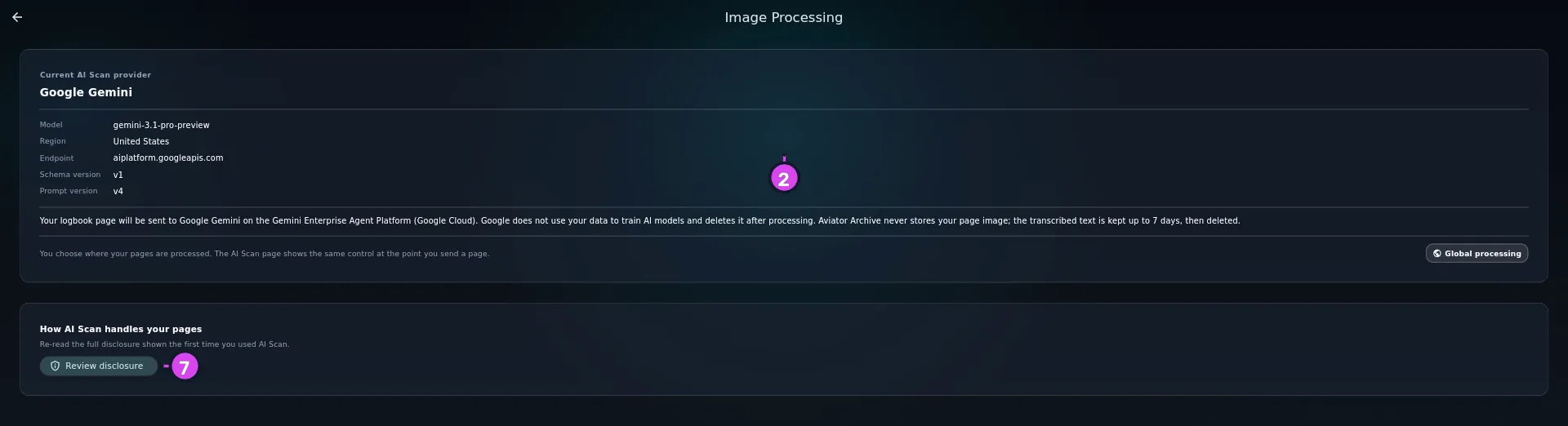
2 Region7 Review disclosure - Pull down to refresh. The values come from the server on every visit, so refreshing confirms them rather than trusting a saved copy.
- Tap the region chip under the disclosure sentence — it reads EU processing or Global processing — to open the region picker. The AI Scan page has the identical chip in its top bar, so you can use whichever screen you’re on.
- To move into EU processing, tap European Union and confirm. It takes effect immediately.
- To move away from EU processing, tap Global, tick the box reading I want my AI Scan pages processed outside the European Union, and tap Switch to Global. The button stays disabled until the box is ticked.
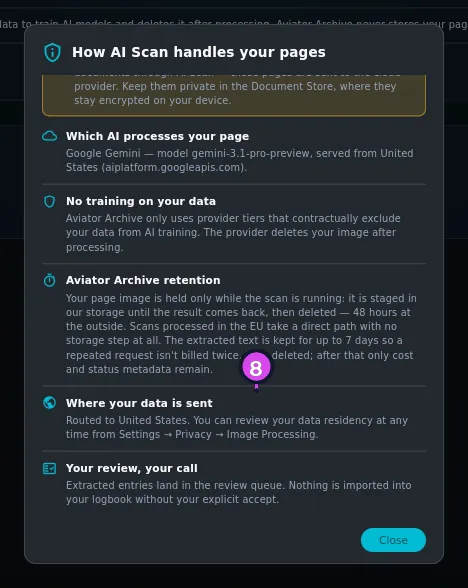
- To re-read what you agreed to, tap Review disclosure, under How AI Scan handles your pages — Re-read the full disclosure shown the first time you used AI Scan.
- Scroll through the five panels — Which AI processes your page, No
training on your data, Aviator Archive retention, Where your data is
sent, Your review, your call — and tap Close when you’re done.
How to tell it worked
The region chip and the provider card’s Region row change to the value you chose, and the change survives closing the app — it’s stored on your account, not only on this device.
Re-reading the disclosure changes nothing and agrees to nothing. In review mode there’s no Cancel button; the only button is Close, which consents to nothing. Tapping outside a panel closes it too.
If something goes wrong
| What you see | Why | What to do |
|---|---|---|
| Provider directory unavailable / Sign in and pull to refresh. AI Scan still works — the worker uses the named provider on file regardless of whether this screen can reach the directory. | Either you’re signed out, or the directory didn’t load — a dropped connection, or the server refused. The screen can’t tell these apart, so it shows this card and its sign-in advice for both | If you are signed in, pull down to refresh and check your connection. AI Scan itself isn’t affected either way |
| Could not load the provider directory, with an error underneath | An unexpected error. Ordinary failures show the card above instead, so this one is rare | Pull down to refresh. If it keeps happening, check your connection |
| The region picker shows an error and your region didn’t change | The connection dropped, or the server rejected the change, while you were changing region | Nothing changed — a failed attempt never shows as a successful one. Try again once you’re connected |
| Schema version and Prompt version are missing | The server didn’t supply them. They’re extra detail, not required | Nothing. The rows that matter are Model, Region and Endpoint |
| The AI Scan page keeps warning you even though you changed the setting weeks ago | You’re in the EU and still set to Global processing. The warning appears on every scan, not once | If Global is still what you want, tap Continue anyway each time, or switch to EU processing to stop seeing it |

The warning on the AI Scan page
If you’re in the EU and your processing region is set to Global, the AI Scan page warns you before you can capture a page — every time you open it, not only on the day you changed the setting. The warning offers Cancel, Continue anyway, and Switch to EU in one tap.
Choosing Continue anyway is recorded against your account: the last time you acknowledged it and a running count, not a log of every scan. It never delays or blocks the capture you’re about to make, and if recording it fails, nothing is shown to you and it isn’t retried. Switch to EU isn’t recorded that way, and doesn’t need to be — changing the setting is its own record of the choice.
What the region decides
The region isn’t a label. It decides the route your page takes:
- EU — your page is processed on an EU-resident endpoint, and it takes a direct path with no storage step at all.
- US — your page is staged in storage until the result comes back.
The disclosure on the screen says this in its own words, and those are the ones to trust: the provider, the model and the retention behind them are set on the server and can change without an app update. That’s why this screen exists rather than a paragraph in a document.
Where your starting region comes from, and why you might change it
Your region is first set from where you were, as the network saw it, the first time you signed in. The EEA countries plus the United Kingdom and Switzerland start on the EU endpoint; everywhere else starts on the US one.
That starting region only ever moves toward the EU on its own — a US-based pilot who signs in during a layover in Frankfurt is EU-routed from then on, without being asked. It never moves back by itself. The region picker in this guide is the only way to go the other direction, and it asks you to state the choice so there’s a record that you made it.
Only scan logbook pages
The app’s own disclosure says it, and it’s the one instruction on this screen that should change what you do: Don’t scan medical certificates, licences, or other sensitive documents through AI Scan — those pages are sent to the cloud provider. Keep them private in the Document Store, where they stay encrypted on your device.