
Add photos to a flight
What this does
Attaches photos to a flight — memories, in the app’s word — and shows you where to find them again.
Before you start
- The flight is already saved in your logbook. Photos aren’t on the entry form. They live on the flight’s detail view (→ D7), in a block headed Memories, under the route.
- Adding and removing both take effect immediately. There’s no Save on this block, and no undo.
Steps
- Open the logbook and tap the flight’s card. Its detail view opens.
- Scroll to Memories, under the route at the top.

- Tap the Add photo tile.
- On Android and iOS, choose Take photo or Choose from library. On
Windows, macOS and Linux there’s no camera option: the tile goes straight
to a file chooser, so take the picture in your camera app and add the file.
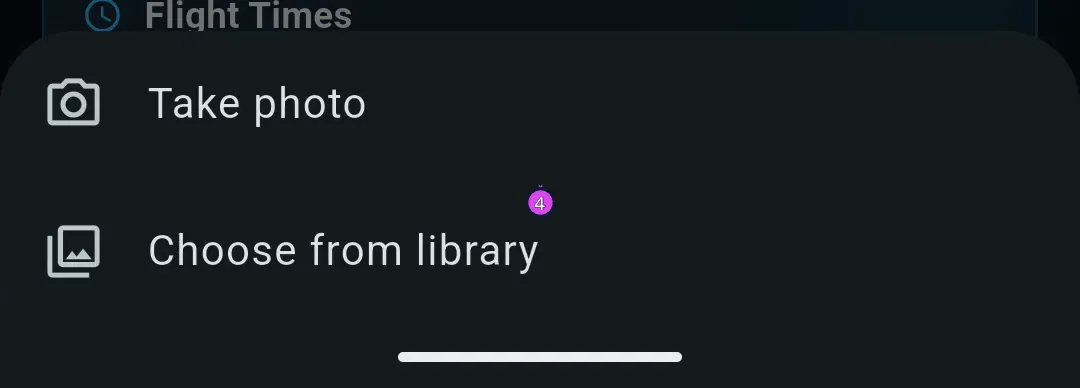
- Pick the images. Take photo adds the one you shoot; Choose from
library and the desktop Choose media chooser both take several at
once.

How to tell it worked
The thumbnails appear in the Memories block straight away — there’s nothing to save. Back in the logbook list, the flight’s card now has a photo badge, so you can spot flights with photos without opening each one.

If something goes wrong
| What you see | Why | What to do |
|---|---|---|
| Could not open the image chooser. | The app doesn’t have permission to read files or photos — or, after Take photo, to use the camera | Grant it in your device’s settings and tap Add photo again |
| Couldn’t add N of M photos. | Some of the files couldn’t be read or copied | The ones that worked are attached. Try the rest again, or convert them to JPEG or PNG first |
| No Take photo row when you tap Add photo | You’re on a desktop, where the app has no camera option | Take the photo in your camera app, then add the file from here |
| No Memories block where you’re looking | You’re on the entry form rather than the saved flight’s detail view. The form has no photo block | Leave the form, tap the flight’s card, and scroll to Memories. A draft has the block like any other flight |
| A photo has gone from the flight but is still on your device | Removing a photo detaches it from the flight; the file itself is left alone | Nothing to fix. Two flights can share one file, so the file stays |
| A video file isn’t offered | Memories are images only | Nothing to fix — only images can be added |
Looking at a photo
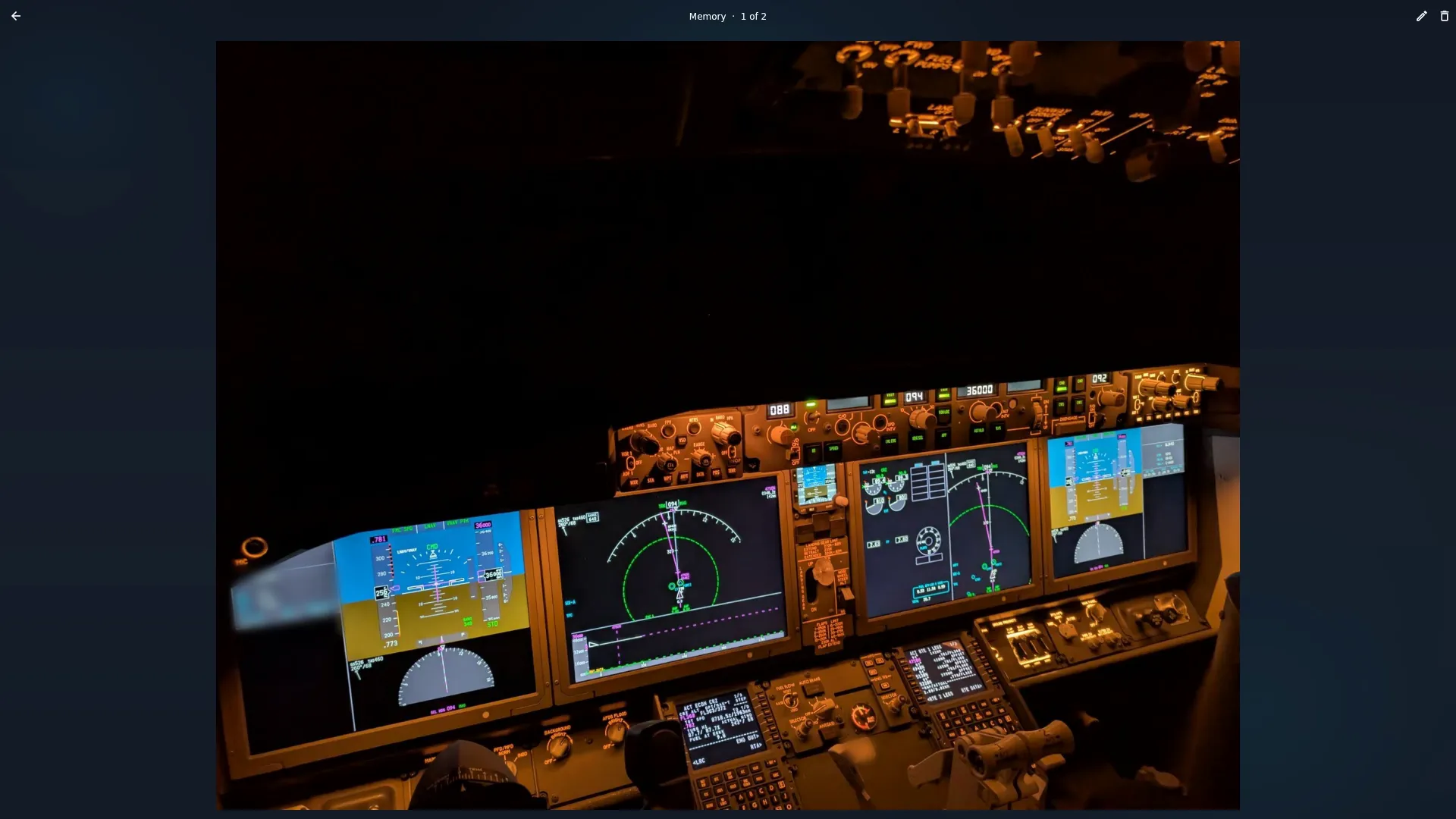
Tap a thumbnail and it opens full-screen on a page titled Memory. Pinch to zoom, and swipe between the photos on that flight. The header has two buttons: Edit caption and Remove.
Naming a photo
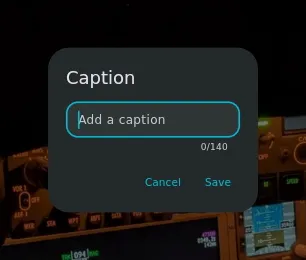
Tap Edit caption in the viewer’s header. A dialog headed Caption opens, with a field hinting Add a caption; it takes up to 140 characters. Tap Save, and the caption replaces Memory as the viewer’s title, so you can tell your named photos apart while you swipe. To clear a caption, open Caption again, empty the field and tap Save.
A caption belongs to the photo rather than to the flight. It travels to your paired devices with everything else, and like the photo itself it reaches no export.
Removing a photo
Every thumbnail has a small × badge, and the full-screen viewer has its own Remove button. Either one takes that photo off the flight immediately — no confirmation and no undo, so be sure before you tap. The image file itself stays where it is on the device.
What photos are, and are not
Memories aren’t part of the regulatory record, and they’re free — there’s no Pro check here. They aren’t exported in a PDF logbook, a CSV, or an FAA 8710 (→ F1, F3). They don’t reach any total or currency window, and they’re never uploaded anywhere: they travel to your own paired devices when you sync, and no further.
A photo’s caption is the only thing you can write about it, and it stays inside the app. Nothing here reaches a regulator, an employer or a totals column.